Since October 29, Copilot in Excel comes with accounting skills: bank reconciliation, adjusting entries, close tracking, budget versus actuals and audit preparation. Here are five use cases step by step, plus a shortcut if your books are kept in Pennylane.
Finance teams in our training sessions often tell us: “Copilot is great for summing up a Teams meeting, but for our month-end close, forget it.” Until now they had a point. Copilot could write a formula or build a chart, yet for a reconciliation you had to spell out the steps, the rules and the checks. The accountant was almost teaching Copilot the job. The accounting skills announced at the end of October solve a good part of that problem. At AI Sisters, an AI consulting firm, we reviewed them for finance teams.
In short
- On October 29, Microsoft announced accounting skills for Copilot in Excel and in Cowork.
- A skill is a ready-made working method: Copilot already knows how to run a reconciliation or track a close.
- You call it by typing @ and its name, for example @reconciliation, then write your request.
- The five most useful everyday uses: bank reconciliation, adjusting entries, close tracking, budget versus actuals, audit.
- Copilot prepares and you approve: nothing is posted to your accounting software without your sign-off.
- If your data lives in Pennylane, Claude already connects to it in read-only mode and hands you the starting Excel file.
Books kept in Pennylane? Start with Claude
Microsoft lists QuickBooks, Xero and Dynamics 365 among the sources Copilot can read. Pennylane is not on the list. For teams whose books are in Pennylane, the shortest path goes through Claude: since early August, Pennylane offers an official connector that lets Claude read invoices, bank transactions, trial balance and VAT returns, with your access rights and without changing anything.

In practice, you ask Claude to extract the month’s bank transactions or the ledger for an account, it returns a clean Excel file, and Copilot’s skills do the rest. Everything is explained in our article Claude and Pennylane: the MCP for accounting firms and finance teams, with a setup guide to download.
What Copilot can now do in Excel for accounting
Microsoft groups its accounting skills in an “Accounting” folder of the Copilot menu. Each one follows a method suited to the task: instead of starting from a generic instruction, Copilot knows which columns to match, which checks to run and which document to produce.
| Skill | What it does | For whom |
|---|---|---|
| reconciliation | Matches ledger, bank statements and vendor records; flags and explains differences | Accountant, treasurer |
| journal-entry | Drafts adjusting entries, accruals and reversals; checks debits equal credits | Accountant |
| close-management | Tracks the close checklist: owners, due dates, blocked tasks, open reconciliations | Accounting manager |
| variance-analysis | Explains actual versus budget or forecast, with a waterfall chart | Financial controller |
| budget-and-forecast | Builds budgets and forecasts from actuals and department inputs | Controller, CFO |
| audit-support | Selects samples, tests controls, traces a transaction back to its source | Internal audit, accountant |
| financial-statements | Prepares financial statements and reporting packages | Accountant, CFO |
| tax-preparation | Prepares tax analyses and workpapers, reconciles tax accounts | Tax specialist |
In Cowork, the space where Copilot chains several work steps, these skills come bundled in a plugin. It can prepare a full close review pack, for example the Excel analysis, the variance summary and the committee presentation, which you review before sharing.
Microsoft video: a day in a finance team working with Copilot.
Before / after: your month-end bank reconciliation
You are the accounting manager, three days into the close. The bank statement and the ledger do not match. Before, you put both files side by side, ticked each line, hunted for duplicates and supporting documents, then wrote the reconciliation statement. Now one request gets you the first draft.
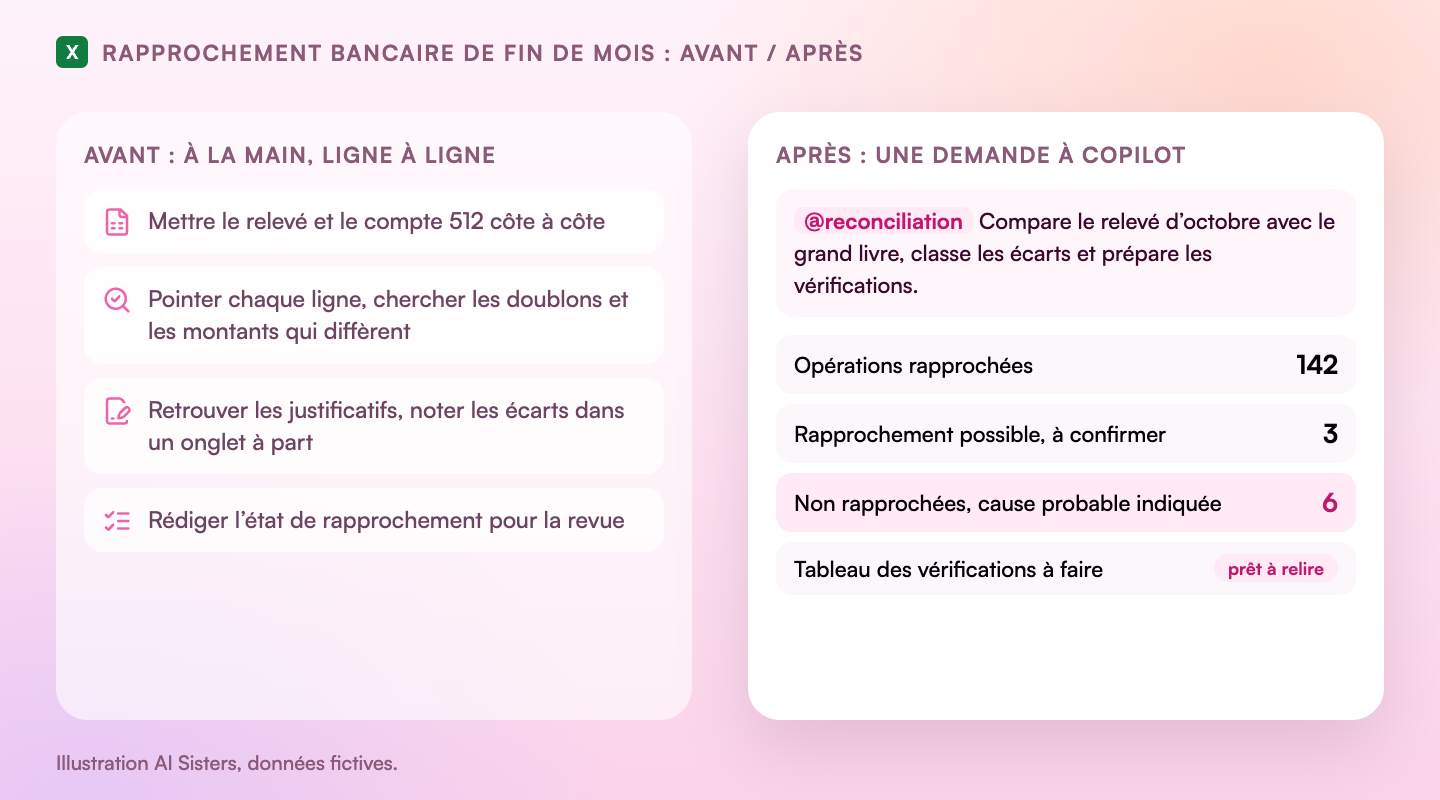
To understand. A skill is the procedure sheet you would give a new accounting assistant: the steps, the checks, the expected format. Copilot already has it, so you only hand over the file.
Using an accounting skill in 4 steps
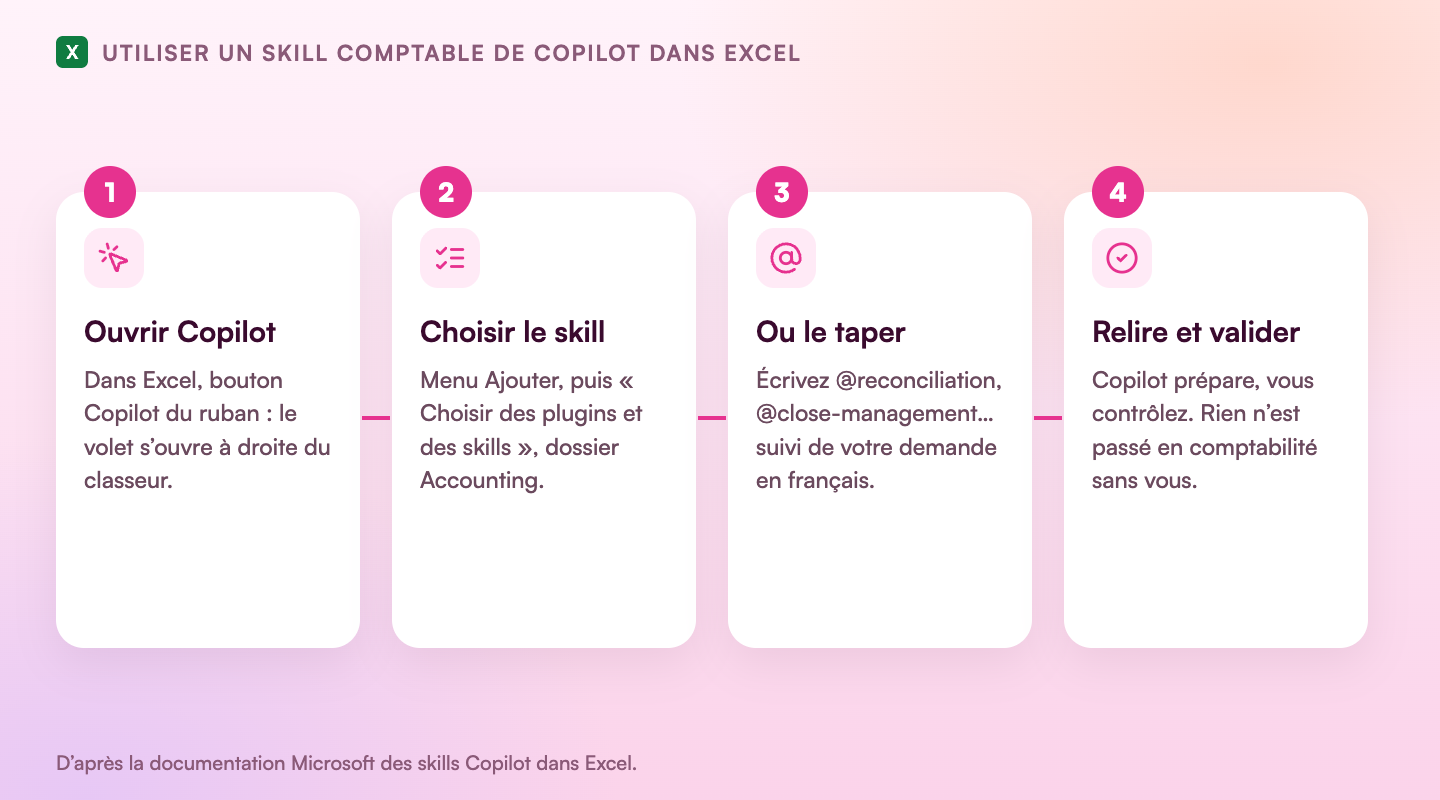
- Open your workbook and click Copilot on the ribbon. The pane opens on the right.
- In the prompt box, open the Add menu, then choose plugins and skills: the Accounting folder holds the accounting skills.
- Faster: type @ followed by the skill name, for example @reconciliation, then your request.
- Review the result. If you turn on the audit trail, Copilot records in the chat what it changed and why.
Is your finance team starting with Copilot?
Our training sessions start from your own close files and your real reconciliations.
Copilot training for companiesBook a call5 Copilot Excel use cases for accounting, step by step
1. Bank reconciliation
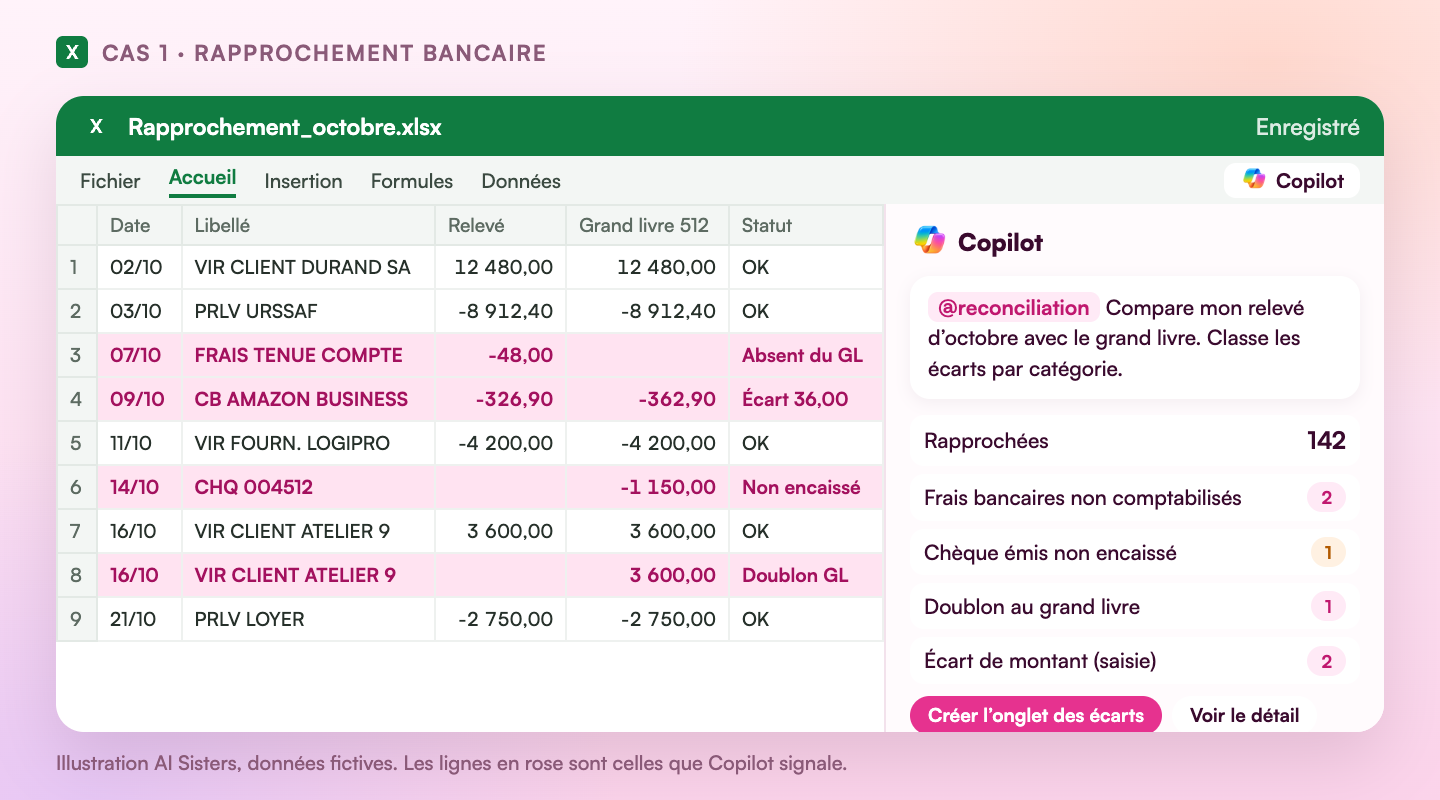
Every close starts here. The reconciliation skill compares the statement with account 512, then sorts the differences: unrecorded fees, uncashed cheques, duplicates, input errors.

The request: “Compare my October bank statement with the general ledger. Identify unmatched transactions, group the differences by category and prepare a list of checks to run.”
The result: a table of matched and unmatched transactions, the likely cause of each difference, and the points a person needs to check. Microsoft also offers a guided reconciliation that suggests which columns serve as key and amount before running the comparison.
Watch out: abbreviated bank labels sometimes fool automatic matching. Keep an eye on the “possible match, to confirm” category.
2. Adjusting entries
Once the differences are found, they need fixing. The journal-entry skill drafts the entries (bank fees, input corrections, reversals, accruals) and checks that debits equal credits.
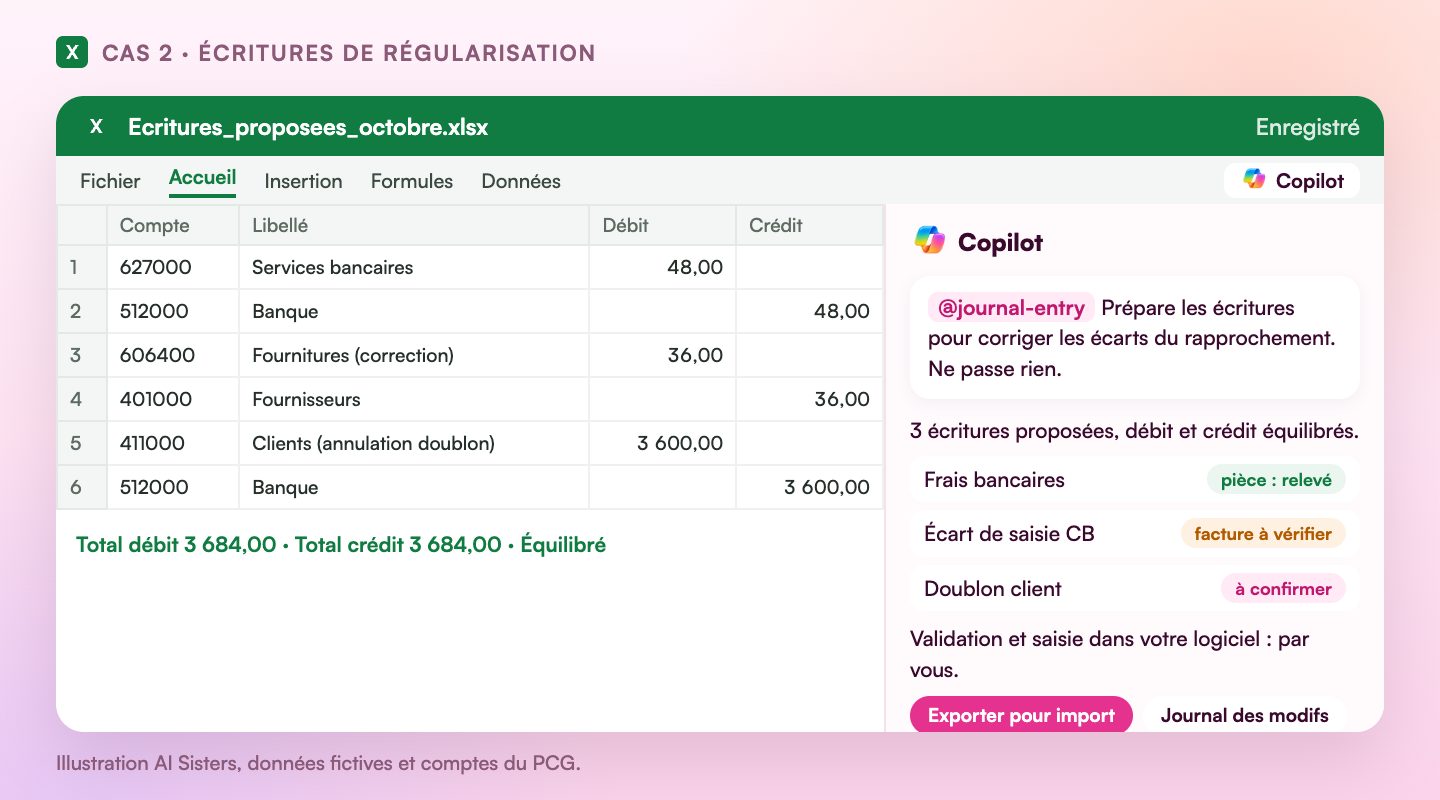
The request: “Prepare the entries to fix the reconciliation differences. Do not post anything, I will approve first.”
You get a draft of entries with accounts, descriptions and supporting documents, ready to import into your software once reviewed.
Watch out: Copilot suggests account numbers. Check they follow your chart of accounts, especially if you use sub-accounts.
3. Month-end close tracking
Accounting managers spend part of every close asking others where they stand. The close-management skill reads your close schedule and spots late, blocked or unassigned tasks.
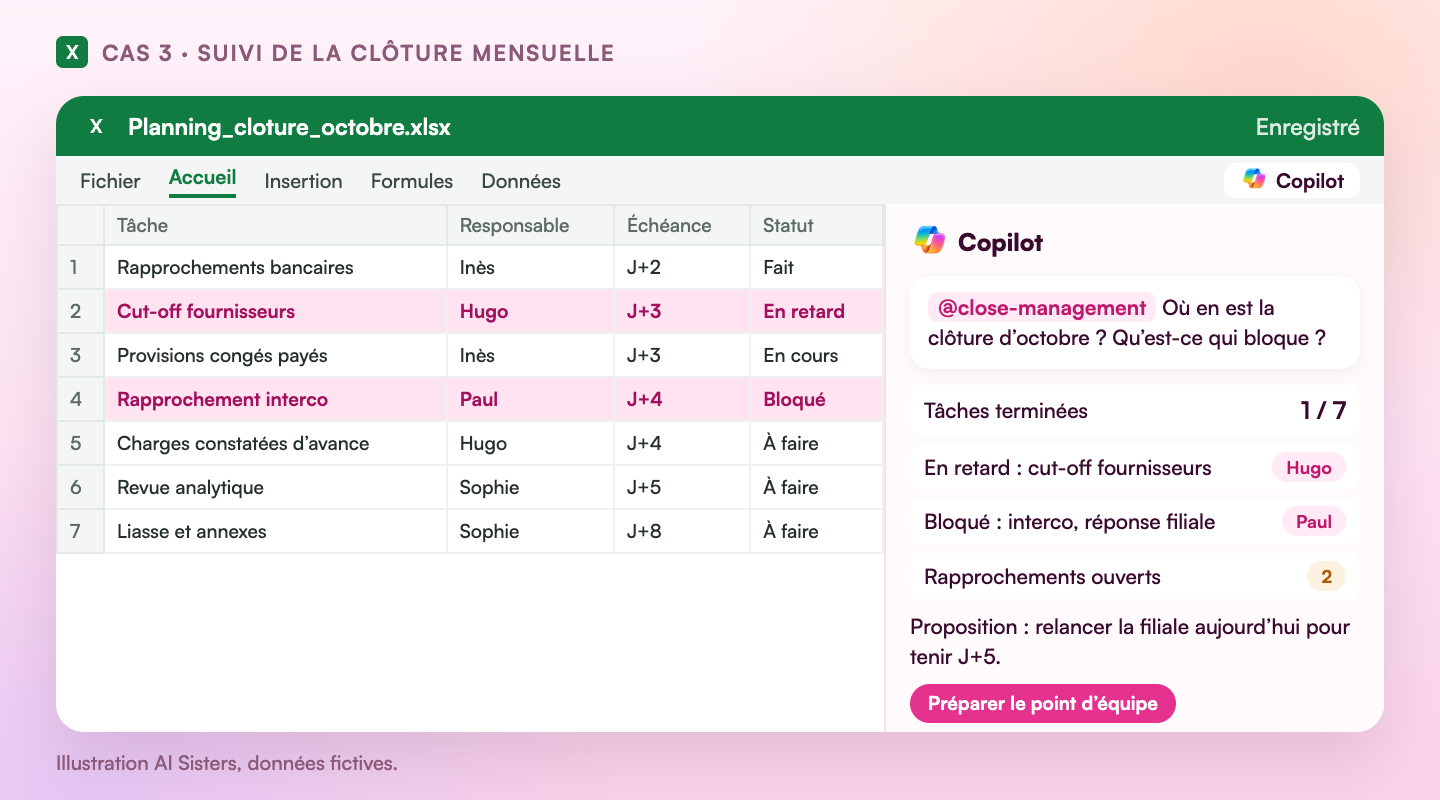
The request: “Where is the October close? What is blocking, and who should I chase?”
Copilot returns the progress, the blockers with their owners and a suggested order of priorities. In Cowork it can go as far as the close review pack with its presentation.
Watch out: it only knows what is in the file. A schedule updated yesterday gives a reliable answer; one from three days ago does not.
4. Budget versus actuals
Every month or quarter, the controller has to explain variances to the management committee. The variance-analysis skill breaks the variance down by line and drafts a first commentary.
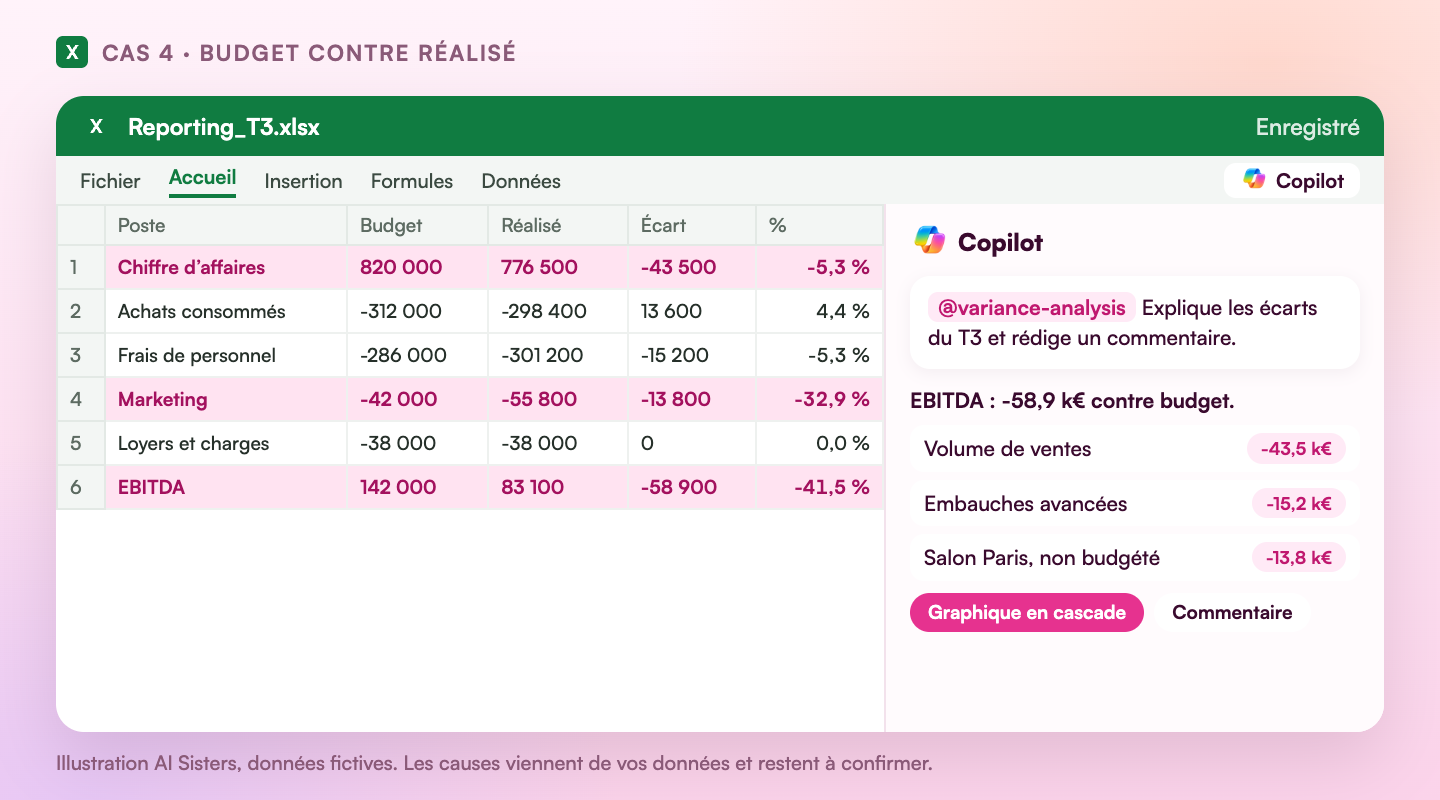
The request: “Explain the Q3 variances between budget and actuals and draft a first commentary for the management committee.”
Copilot isolates the lines that weigh most, suggests an explanation for each and can draw the EBITDA waterfall chart.
Watch out: the causes it suggests come from your numbers. “Unbudgeted trade show” is only an explanation once someone confirms it.
5. Audit preparation
Before the statutory auditors or internal audit arrive, you need to select documents, test them and document each check. The audit-support skill does it on your file.
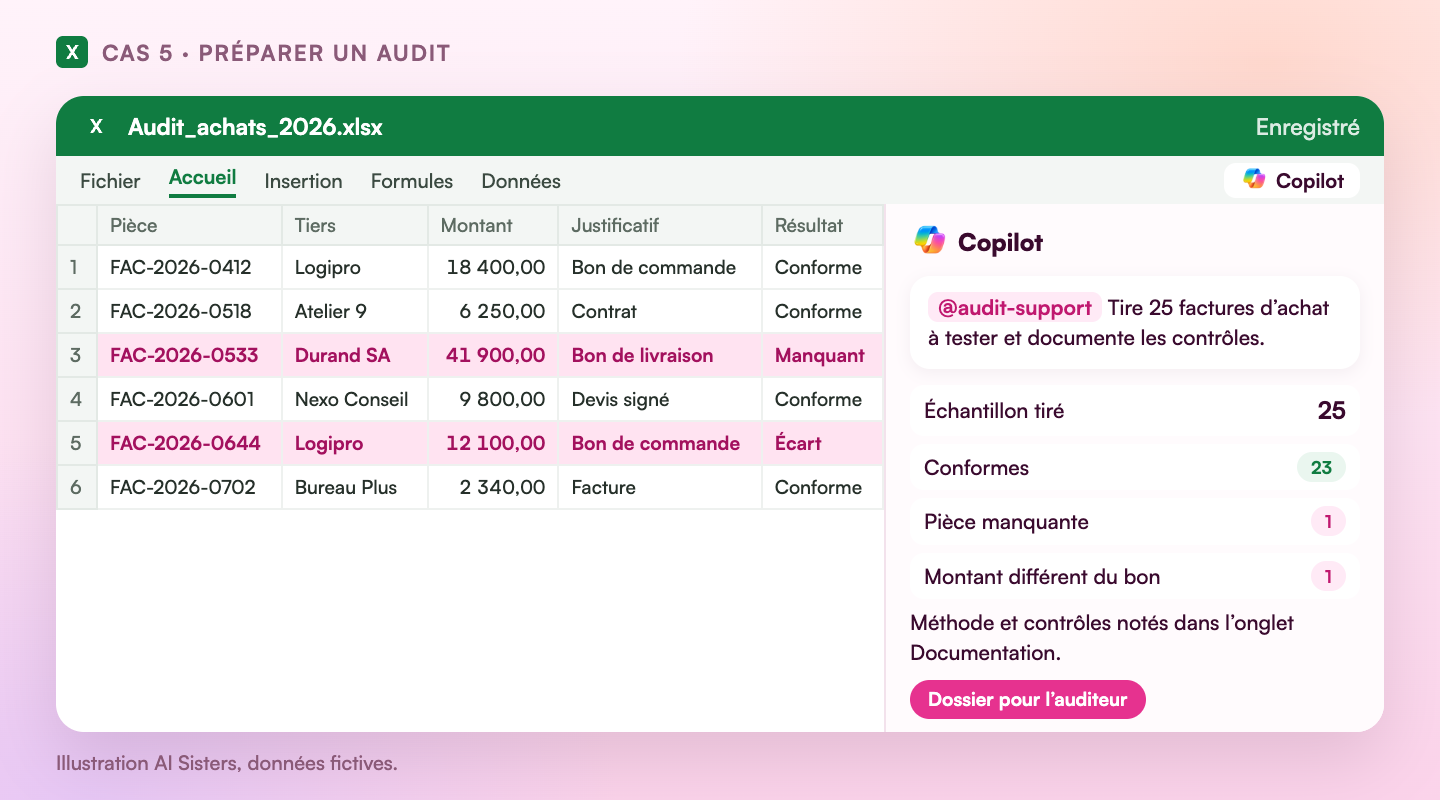
The request: “Pick 25 purchase invoices to test, check each one against its supporting document and document the checks performed.”
You get the sample, the result line by line and a tab explaining the selection method, ready to send to the auditor.
Watch out: Copilot certifies nothing. It prepares the file; you and the auditor remain responsible for the conclusions.
Availability and limits
According to the Microsoft 365 message center, these features have been in preview since late October for Microsoft 365 Copilot licence holders enrolled in the Frontier program. General availability starts rolling out on November 13 and should finish by late November; Frontier enrolment is then no longer required. The audit trail already exists in Excel and is planned for Cowork.
Microsoft repeats it: Copilot prepares, the user reviews, approves and posts. Nothing is sent to an ERP without approval. Connectors to third-party accounting software may need a separate licence or admin activation. Finally, Microsoft has not published accuracy or time-saving figures; it only says that 8,000 users invoked these skills 44,000 times during seven days of limited access, according to Ledger Lowdown.
To understand. Think of Copilot as a very fast intern who has read every procedure. It saves you the first pass; the signature stays yours.
Where should your finance department start?
A 30-minute call to find the close tasks where Copilot or Claude save your teams time.
Book a callAI training for financeRead also: our guide to Microsoft Copilot training for companies, Claude in Excel and our corporate AI training.
Key takeaways
- Copilot in Excel now has accounting skills: reconciliation, entries, close, budget variances, audit, tax, financial statements.
- You call them with @ and the skill name, then a plain-language request.
- Five uses to start with: bank reconciliation, adjusting entries, close tracking, budget versus actuals, audit preparation.
- On Pennylane, Claude reads your data through the official connector and prepares the starting Excel file.
- Preview since late October, general availability from November 13. Every result is reviewed before it is posted.
Sources
- Microsoft, Use built-in skills and skills created by Microsoft with Copilot in Excel.
- Microsoft 365, centre de messages, MC1536053, New accounting capabilities in Excel and Cowork.
- Microsoft Learn, Reconciliation in Excel (preview).
- Ledger Lowdown, Microsoft Gives Copilot 25 New Finance Skills for Accounting Work.
- Microsoft Copilot sur YouTube, How to use Microsoft 365 Copilot in finance.