.svg)


Since 5 May 2026, ChatGPT has been generally available in Excel and Google Sheets.
Not in beta. Not for a few selected companies.
For all plans, including the free one!
It is a paradigm shift for teams that live in spreadsheets: management control, HR, marketing, senior management.
The "copy and paste between ChatGPT and Excel" workflow now belongs firmly in the past...
In this article: how it works, what your teams can automate right now, and how to bring your employees on board to achieve real time savings.

■ Your teams use Excel every day.
Discover how AI Sisters trains them to use AI directly in their business tools — without friction, without jargon.
→ Book a free call
Why this integration is a real game changer for companies
Excel remains the most widely used tool in companies, across all functions.
It is where forecast budgets, variance analyses, HR dashboards and management reports are built.
It is also where the most time is lost: hours spent formatting, cleaning badly entered data, recreating analyses that nobody documented, and answering the same questions every month.
Until now, AI sat next to the spreadsheet: you asked ChatGPT for help, copied the result and pasted it into Excel.
Lots of friction, frequent errors, and limited adoption among non-technical employees.
With the ChatGPT add-in, the AI is inside the spreadsheet.
It sees your data, acts on it, explains what it is doing and asks for approval before each change!
It is precisely this architectural shift from "next to" to "inside" that explains why this announcement is far from trivial.
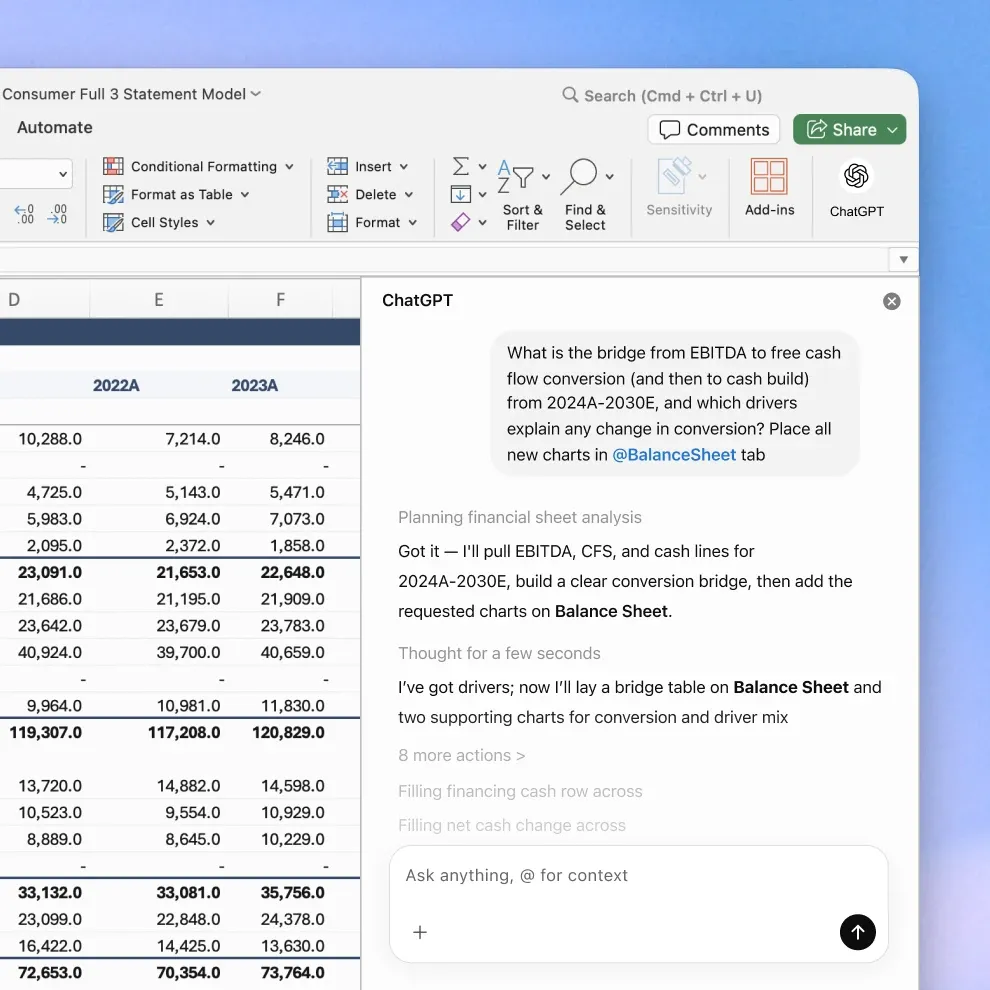
What ChatGPT can actually do in Excel and Google Sheets
Create a table from scratch based on a description
You describe what you want a 12-month forecast budget, a headcount tracker by department, a marketing campaign plan and ChatGPT generates it, formulas included, with formatting!
No template to adapt, no columns to create by hand!
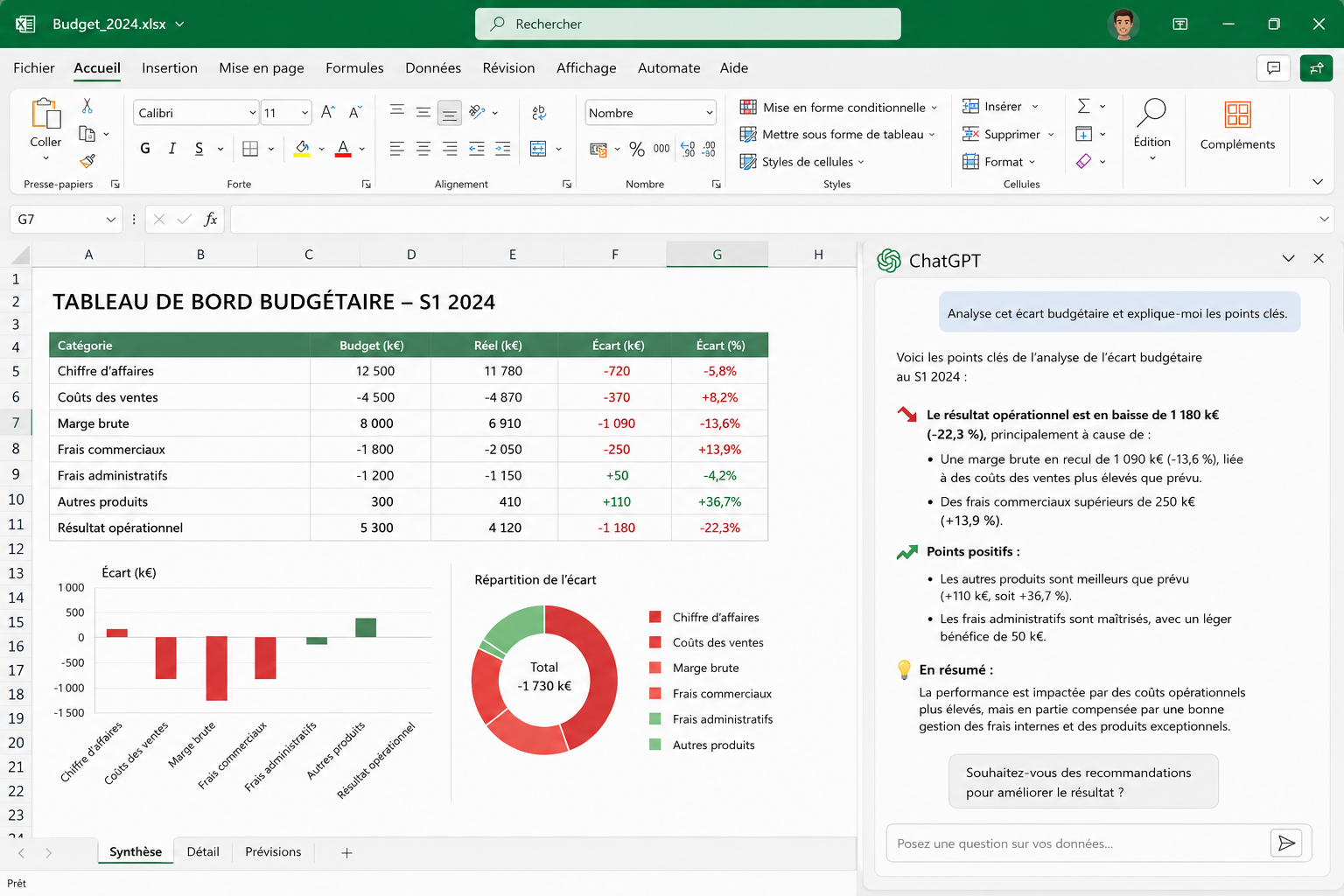
Analyse your data across several tabs
The add-in reads your entire workbook, including multiple tabs.
You can ask it questions in natural language: "Where are my biggest variances against budget this quarter?", "Which department has the highest absenteeism rate?", "Which customers have increased their purchase volume by more than 20%?".
It answers in plain language, with no formula to decipher!
Clean data in a few seconds
Duplicates, inconsistent formats, empty cells, badly entered dates: ChatGPT identifies the problems and fixes them.
This is often where the time saving is most immediate and most impressive for sceptical employees!
Automate recurring tasks with "Skills"
The add-in lets you set up reusable workflows called Skills for tasks that come round every week or every month: standard formatting, financial reconciliation, scenario analysis.
Set it up once, rerun it in one click!
Bring in web data without switching tabs
ChatGPT can search the web from the side panel and insert the data directly into your sheet.
Exchange rates, sector data, competitive information: the spreadsheet becomes a real-time information terminal!
■ Is your Finance team still spending 3 hours on its reports?
AI Sisters trains your employees to automate their recurring Excel tasks with AI — from the very first sessions.
→ Talk to a training expert
The roles that will get the most value from it
Management control and Finance
Variance analyses, forecast budgets, reconciliations, scenario building: everything that is still done manually in Excel, often under deadline pressure.
This is the use case with the most direct and most measurable ROI.
The add-in can also connect to other applications linked to the OpenAI account, Stripe, SharePoint and others to enrich sheets with external data without manual imports.
Human Resources
Headcount trackers, payroll analyses, monthly HR reporting, training tracking, absenteeism calculations.
Time-consuming tasks that take up hours of low-value work. AI automates them, and the HR director can focus on analysis and decisions!
Marketing and Communications
Performance dashboards, consolidation of multi-source data, campaign tracking, CAC and LTV calculations.
These teams often depend on one Excel expert who "knows how to do the formulas".
The add-in opens up access to analysis, with no prior technical training.
Senior management
The report you receive late because someone spent three hours formatting it.
The executive committee presentation rebuilt from scratch every quarter.
These tasks can be cut to a few minutes, with better formatting quality!

■ Ready to roll out ChatGPT in Excel for your teams?
AI Sisters builds the training programme suited to your context — eligible for OPCO funding (French training funds), Qualiopi-certified.
→ Request a free quote
How to install ChatGPT in Excel and Google Sheets: a 4-step guide
Installation takes less than two minutes.
In Excel: Home ribbon → Add-ins → Search for "ChatGPT" → Add → Open from the ribbon → Sign in with your OpenAI account.
In Google Sheets: Extensions menu → Add-ons → Get add-ons → Search for "ChatGPT" → Install → Sign in.
Once installed, a side panel opens to the right of your spreadsheet.
ChatGPT sees the active workbook.
You can start asking it questions or requesting changes straight away.
A few important points to know before rolling it out in your company:
— Conversations in the spreadsheet are kept separate from your usual ChatGPT history. Memory is not available in the add-in.
— In an Enterprise environment, the add-in is disabled by default. Administrators can enable it and restrict access through role-based controls.
— Some advanced Excel features remain out of reach: VBA, Power Query, pivot tables, data validation. The add-in is effective for data analysis and manipulation, but not yet for macro automation.
— For very large workbooks, some datasets may exceed the context window. Analyses need to be split across targeted tabs.
Training your teams on ChatGPT in Excel: why it is essential
Rolling out the add-in is not enough. Field experience confirms this unambiguously.
An employee who cannot write a clear instruction in natural language will not get a better result with ChatGPT in Excel than with ChatGPT in a browser.
They may even lose confidence in the tool after two or three unsuccessful attempts.
The real value of this integration is only realised if your teams know:
— How to structure a request (context + objective + expected format)
— How to check the changes proposed by the AI before accepting them
— How to set up Skills for the recurring tasks in their role
— Which limitations to watch so as not to misuse the tool
This is exactly what AI Sisters rolls out in companies: hands-on ChatGPT training, tailored by role, that turns the tool into real time savings, not a gadget nobody uses after the first week.
900+ companies supported. 60,000+ employees trained.
The results in the field show it: trained teams use AI independently.
Untrained teams give up after a few attempts.
■ AI in Excel is here now. Are your teams ready?
900+ companies trained by AI Sisters. Qualiopi-certified training provider. Measurable results from the first session.
→ Book a call with the team
100%
Compatible plans — free included
2 min
To install the ChatGPT add-in
60,000+
Employees trained by AI Sisters
May 2026
General availability of the add-in
Also worth reading on this topic:
Frequently asked questions — ChatGPT in Excel and Google Sheets
Question
Is ChatGPT in Excel available to all companies, including in Enterprise environments?
Yes, but with an important nuance: in Enterprise environments, the add-in is disabled by default. IT administrators must enable it manually and can restrict access by role. For SMEs and mid-sized companies on Free, Plus or Business plans, access is immediate after installation.
Question
Is the data entered in Excel sent to OpenAI?
Yes: for ChatGPT to analyse your workbook, the data is sent to the OpenAI API. Conversations in the add-in are kept separate from your usual ChatGPT history, and memory is not available there. For sensitive data (salaries, personal data, confidential financial information), make sure your OpenAI plan complies with your internal security policy before rolling it out.
Question
Do you need to be an Excel expert to use ChatGPT in the spreadsheet?
No — that is precisely the main benefit of the tool. An employee with no Excel expertise can ask in natural language for what they want, and ChatGPT generates the formulas and the structure. However, employees trained to write precise instructions (prompt engineering) get far more value from it than those who use it without a framework.
Question
What is the difference between ChatGPT in Excel and Claude in Excel?
Claude for Excel (Anthropic) got there first in March 2026. ChatGPT (OpenAI) followed in May. Both work on the same principle: an add-in with a side panel. The main difference lies in the underlying model (GPT-5.5 vs Claude Sonnet), the native integrations available, and how confidentiality is handled in Enterprise environments. The choice often depends on the AI ecosystem already deployed in the company.
Question
How can I train my teams to use ChatGPT in Excel effectively?
Installation is simple. Adoption is far less automatic. Feedback from the field shows that untrained employees give up on the tool after a few unsuccessful attempts. Training tailored by role — Finance, HR, Marketing — covering how to write instructions, check results and set up Skills leads to lasting adoption. This is what AI Sisters rolls out in companies, with hands-on sessions and measurable results from the first week.
Also worth reading: Claude in Excel: the Claude for Excel guide and excelling at Excel with ChatGPT-4o
Where does your company stand with AI? Take the free AI diagnostic in 5 minutes and get your action priorities.







.avif)