Since 24 November 2026, an artifact created in Claude can become a real app on your Mac or Windows PC: its own icon, its own window, notifications. Just describe the tool to Claude, test it, then click “Install as app”.
At AI Sisters, an AI consultancy, we looked at what the feature really allows, what permissions it requires and how to install it step by step.

In brief
- A Claude artifact (a page, a dashboard, a small tool) can be installed as a Mac or Windows app in three clicks.
- The app has its own icon and its own window. It can send notifications or sit in the menu bar.
- It uses Claude and your connectors, and updates itself whenever the artifact is changed.
- Nothing happens on your computer without your consent: three permission levels, app by app.
- It is a beta, on all plans, with Claude Desktop 6.28899.0 or later. On Enterprise, an owner must turn it on.
- Every request the app makes to Claude counts towards your plan’s usage limits.
Read also: what’s new in Claude Cowork, animated dashboards with Claude and Claude for business.
What you can do with it
Artifacts started out as deliverables: a chart, a web page to share. Anthropic notes that they now serve as everyday tools, for example a meeting-prep page that draws on your calendar and emails, or a tracker for orders to ship that day. The problem: you had to find the right conversation to reopen them.
Once installed, the tool opens like Outlook or Excel. And it can do things a web page cannot:
- Alert you with a notification while you are working elsewhere.
- Stay visible in the Mac menu bar or the Windows notification area.
- Respond to a keyboard shortcut, even when another app is in the foreground.
- Query Claude and your connectors (calendar, email, CRM), as the artifact already does.
Anthropic’s examples show the scale: a layered image editor (Linnet), a file manager (Phosphor), a tool that tidies your folders with Claude (Sift), an annotated terminal (Tern), a performance monitor in the menu bar (Vitals). The help centre mentions simpler uses: a Pomodoro timer, an hourly reminder to stretch, a tool that renames the photos in a folder by date.
In plain terms. An artifact is like a document lying on your desk: you have to go and fetch it to use it. Installed, it becomes an app with a doorbell: it calls you when something needs your attention, and it keeps its place in the Dock like your other tools.
How to do it, in three clicks
Prerequisite: the Claude app for Mac or Windows, version 6.28899.0 or later. The browser is not enough: its “Add to Dock” option only creates a shortcut, with no notifications or permissions. If the option does not appear, update Claude (on Mac: Claude > Check for Updates; on Windows: ☰ menu, Help > Check for Updates).
First: ask Claude for the tool
Describe the app in a conversation, as you would describe the need to a colleague. For example: “Create a dashboard of my meetings this week showing, for each one, the latest exchanges with the client. Notify me 15 minutes before each meeting.” Test the artifact, fix it in the conversation, then install it.
Step 1. Open the artifact in Claude Desktop
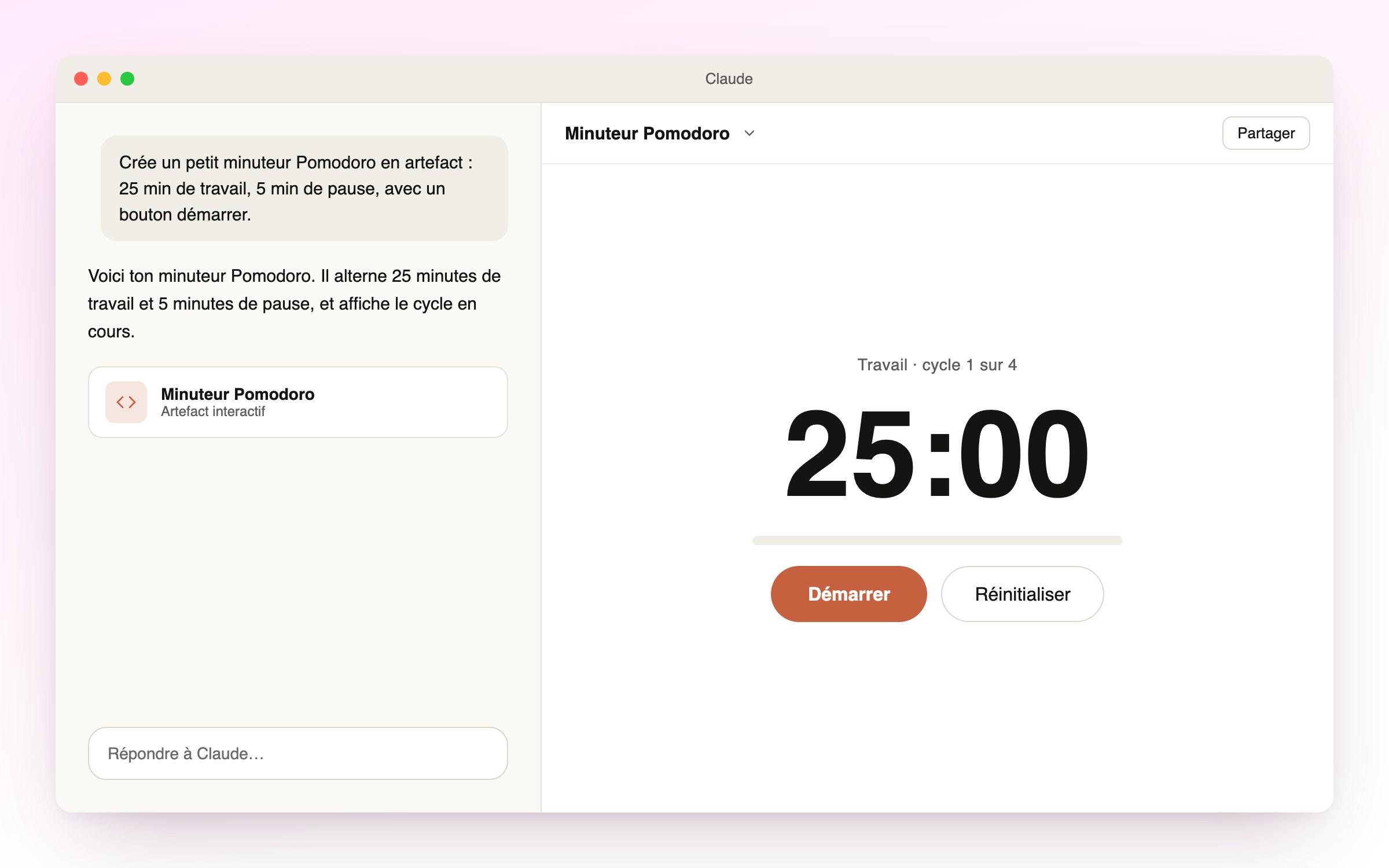
Open the conversation containing the artifact in the Claude app for Mac or Windows, not in the browser. The artifact appears to the right of the conversation.
Step 2. Open the artifact menu
Click the artifact’s title at the top, or right-click it. The same option is also in the Share menu.

Step 3. Choose “Install as app”, then “Install”
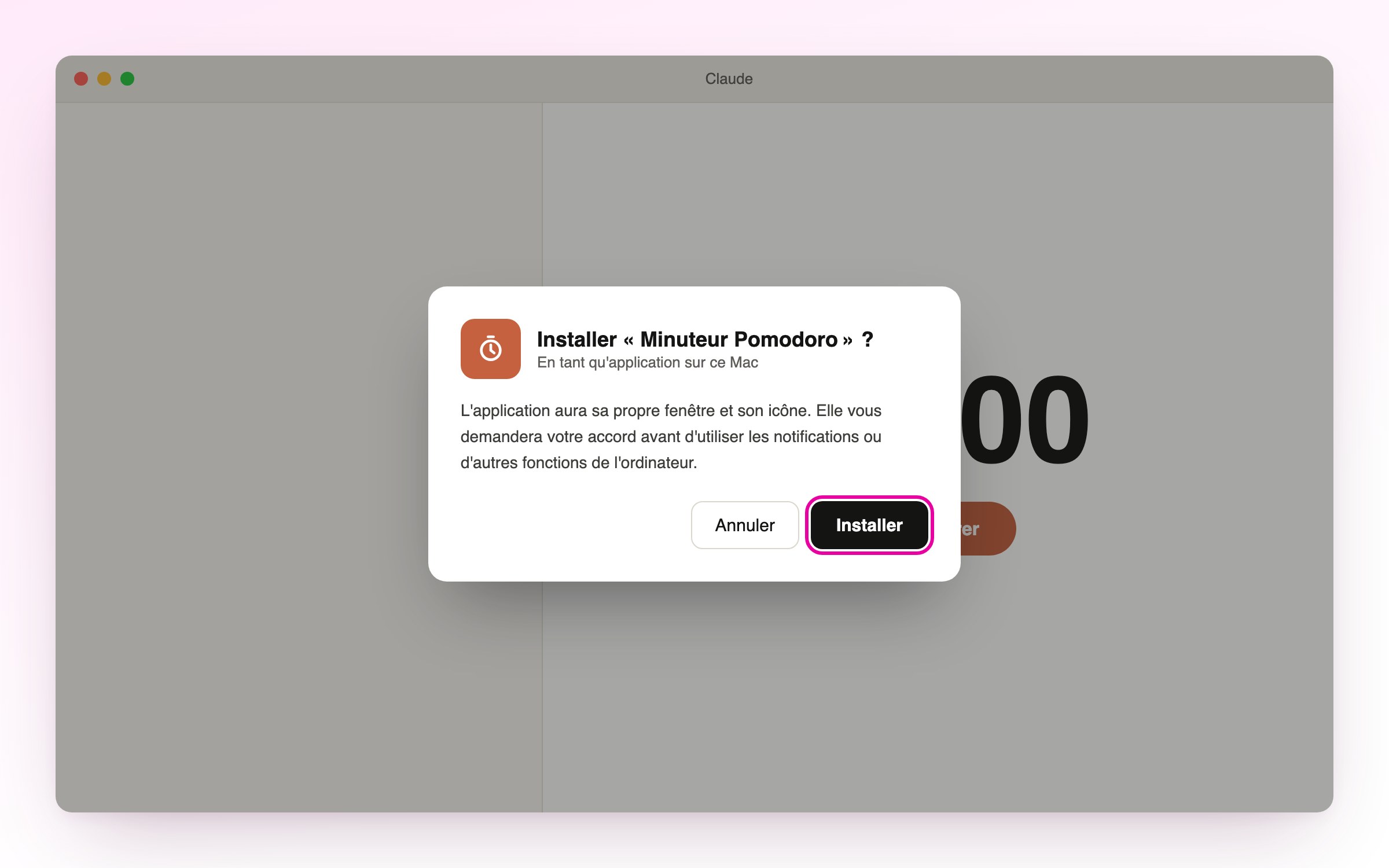
Claude shows a confirmation window before every installation. Click Install. No packaging, no code signing, no API key: the app uses your Claude account.
Then: open it like any other app
On Mac, it is stored in the Claude Apps folder, inside the Applications folder of your home folder. It also shows up in Spotlight. To keep it in the Dock: right-click its icon, then Options > Keep in Dock. On Windows, it opens from the Start menu (Claude Apps folder) or from the desktop shortcut.
In Claude Desktop, File > Apps lists all your installed apps: this is where you open them, set their permissions and uninstall them.

Do your teams know what to ask Claude for?
Workshops on their real tasks: describe a tool, test it, set out what it is allowed to do.
Claude training for companiesBook a callPermissions: what the app can do on your computer
This is the point to look at before rolling it out. An installed app cannot do anything more than a web page until you allow it. Anthropic provides three levels.
| Level | What the app can do | Who to reserve it for |
|---|---|---|
| Default | What it could do in a browser, nothing more | All apps |
| App permissions | Notifications, global keyboard shortcuts, always-on-top window, icon in the menu bar or notification area. Each request can be accepted or declined | The apps you use every day |
| Full computer access | Launch programs, read, edit or delete your files without asking again | Only apps you created, or that were created within your organisation |
Three rules complete the set-up, according to the help centre. A permission only applies to one version: after every change, even your own, Claude asks again. A refusal stays in place until you change it. And Anthropic does not review apps before they are installed: only grant full access to an app whose authors you all know.
To change a permission: on Mac, click the app’s name in the menu bar, then Permissions; on Windows, right-click its title bar (or Alt+Space). To uninstall it: File > Apps, then Uninstall. On Mac, it goes to the Bin; the artifact itself stays in Claude.
In plain terms. It works like a contractor’s badge. By default, it opens reception. For certain rooms, you need a named authorisation. The master pass is only given to someone in-house. And with every new contract, the badge is reissued.
Who can use it, and what is still missing
| Question | Answer | Source |
|---|---|---|
| Which plans? | All: Free, Pro, Max, Ultra, Team, Enterprise. Gradual rollout, in beta | Anthropic |
| Team | On by default. Full access stays off until an administrator turns it on | Anthropic |
| Enterprise | Off until an owner turns it on (Organisation settings > Artifacts) | Anthropic |
| Which systems? | macOS and Windows. No Linux, no web, no mobile | Help centre |
| Offline? | No: you need to be connected to the internet and to Claude to open the app | Anthropic |
| Excluded artifacts | Those created from a Docs, Slides or Sheets template, older artifacts, live artifacts from Claude Cowork | Help centre |
| Excluded organisations | HIPAA-ready configurations and hybrid deployments | Anthropic |
| Cost | No extra cost announced, but every request the app makes to Claude counts towards your quota | Anthropic |
For an IT department, two points deserve a decision before rollout: who is allowed to grant full access, and which apps may be shared between colleagues, since a shared app updates as soon as its author changes the artifact.
Three apps to create for your teams
1. Sales: the meeting brief that rings
Before each meeting, the salesperson rereads the latest exchanges and the CRM record. An app connected to the calendar and the CRM shows the next client’s record and sends a notification 15 minutes beforehand. First version: read-only, with no permission other than notifications.
2. The executive assistant: tracking approvals
Contracts to sign, expense reports, pending quotes: a menu-bar app shows the number of blocked items and alerts you when one of them is more than three days old. Watch out: each refresh queries Claude and uses quota, so set the frequency accordingly.
3. The admin team: filing documents
Renaming and filing the invoices received in a folder is the help centre’s textbook example. It requires full computer access: reserve it for an app built in-house, tested on a copy folder before touching the real files.
To go further with agents that act on your behalf, see our AI agent training, the Agent-a-thon.
Where to start in your company?
A 30-minute conversation to identify the internal tools your teams could create with Claude.
Book a callAI assessmentKey takeaways
- A Claude artifact becomes a Mac or Windows app in three clicks: artifact menu, “Install as app”, “Install”.
- You need Claude Desktop 6.28899.0 or later: the browser does not offer the option.
- The app can send notifications, sit in the menu bar and use your connectors, with your consent.
- Full computer access should be reserved for apps created by you or your organisation.
- Every request the app makes counts towards your Claude quota: keep an eye on the refresh frequency.
- In a company, decide before rollout who can grant full access.
Sources
- Anthropic, Turn artifacts into Mac and Windows apps, 24 November 2026.
- Anthropic, Installer un artefact en tant qu’application (Install an artifact as an app), help centre, accessed 25 November 2026.
- MacRumors, Claude Now Lets You Install Artifacts as Desktop Apps, 25 November 2026.
- Neowin, Anthropic now allows users to convert their Claude artifacts as Mac and Windows apps, November 2026.
- Windows Report, Anthropic Lets Claude Users Turn Artifacts Into Windows and Mac Apps, November 2026.