.svg)

Updated on 2 October 2026. Canva has been one of Claude's interactive connectors since January 2026. Here is how to connect Claude to Canva, what you can get out of it, and when to choose Claude Slides instead.
You ask Claude for a presentation outline, you copy it into Canva, then you redo every slide by hand. 😅
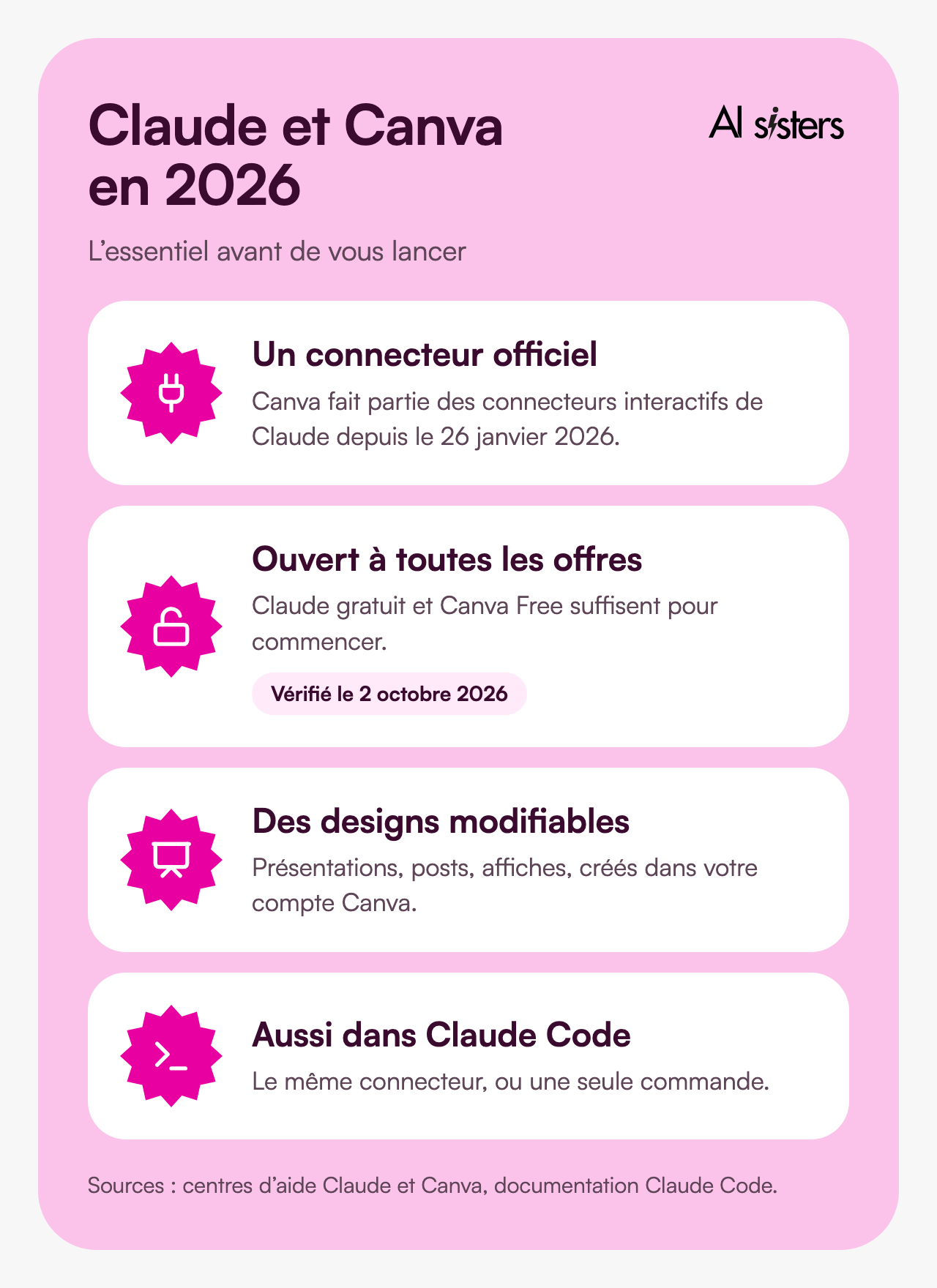
Since 26 January 2026, Claude creates the design directly in your Canva account. The connector is now open to everyone, including the free version.
Here is how to connect Claude to Canva, with the prompts that work and the right tool for each need 👇
"The Canva AI Connector is available to all Canva accounts, including Canva Free": that is what Canva's help centre states.
In short
- To connect Claude to Canva, open Customize, then Connectors, choose Canva and authorise access to your Canva account.
- No paid plan is required: the connector works with free Claude and Canva Free. Brand templates, however, require a paid Canva plan.
- Claude creates, finds, resizes and exports your Canva designs, as PDF, PNG or PowerPoint, from the conversation.
- For a presentation, Claude handles the outline and the text, Canva the layout, and you stay in control of the content.
- Claude Code can use Canva too, with the same connector or a command line.
- Since 16 September, Claude also makes its own slides with Claude Slides. Canva remains useful for your brand guidelines and for versions in several formats.
Also worth reading
Explore our other articles to go further with your presentations using AI:
How to connect Claude to Canva, step by step
You connect once, from Claude on the web or the desktop app. Anthropic's help centre says that installation on mobile is still in beta.
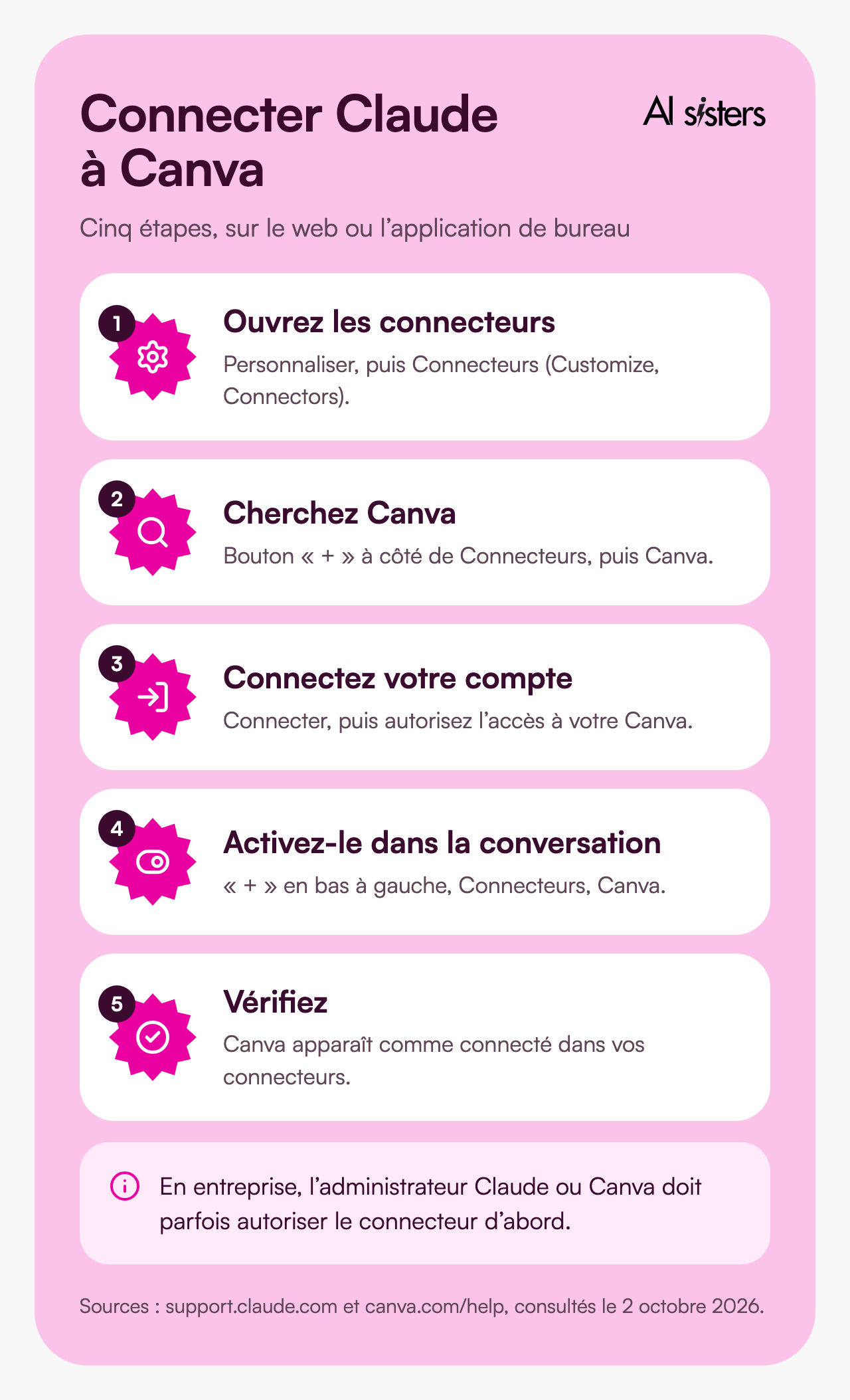
1. Open the connectors.
In Claude, go to Customize, then Connectors. Canva's help centre still refers to Settings, then Connectors.
2. Search for Canva.
Click "+" next to Connectors, then search for Canva. Its "Interactive" badge shows that the design is displayed in the conversation.
3. Click Connect.
Sign in to the right Canva account (personal or business), then authorise access.
4. Switch on Canva in the conversation.
In a new conversation, click "+" at the bottom left, hover over Connectors and switch on Canva.
5. Check.
Canva should show as connected. If it is missing from a conversation, open a new one and switch it on again.
Which plan do you need?
On the Claude side, all plans, including the free plan, according to Anthropic's help centre, including in Claude Cowork. In January, it was reserved for the Pro, Max, Team and Enterprise plans. On the Canva side, all accounts. Brand templates require a paid plan, and some actions use up your Canva AI credits.
In a business setting:
on Claude Team or Enterprise, an owner must first add Canva for the organisation. On the Canva side, the administrator can block the connector, which is treated as a third-party integration. We set these rules at the start of our AI workshops, before the first prompt.
💡 To put it simply: a connector is an access badge. Claude only enters your Canva with your permissions, and you can take the badge back at any time.
What Claude can do in Canva
Once Canva is connected, Claude works directly in your account: it creates, finds, transforms and exports your designs.
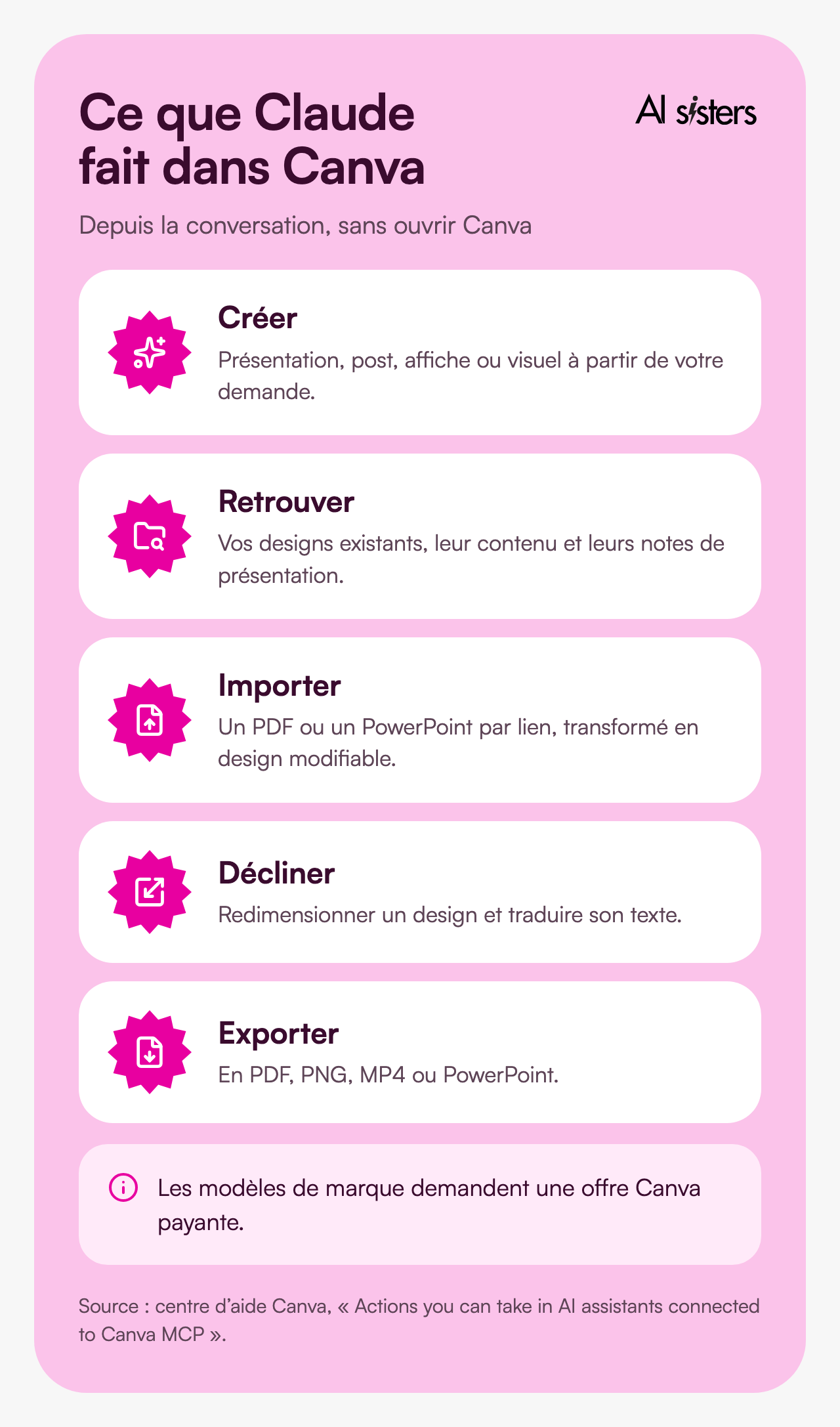
Create.
A presentation, a LinkedIn post or a poster, as an editable Canva design.
Find.
Your existing designs ("find the June committee presentation"), including presenter notes.
Import.
A PDF or a PowerPoint accessible via a link becomes a Canva design.
Adapt.
A design resized (a 16:9 presentation into a story) or translated into another language.
Export.
As PDF, PNG, MP4 or PowerPoint.
What it does not do for you.
Fine-tuning is done in Canva: according to Canva, the available actions vary from one assistant to another.
Discover our AI training & book a call
Explore our different training modules and choose, with us, the one that best meets your AI needs.
📚 See our AI training 📞 Book a discovery call
Create a Canva presentation with Claude: three prompts that work
Specify the audience, the number of slides, the tone and the content of each slide. Our guide to creating a PowerPoint with AI sets out the method.
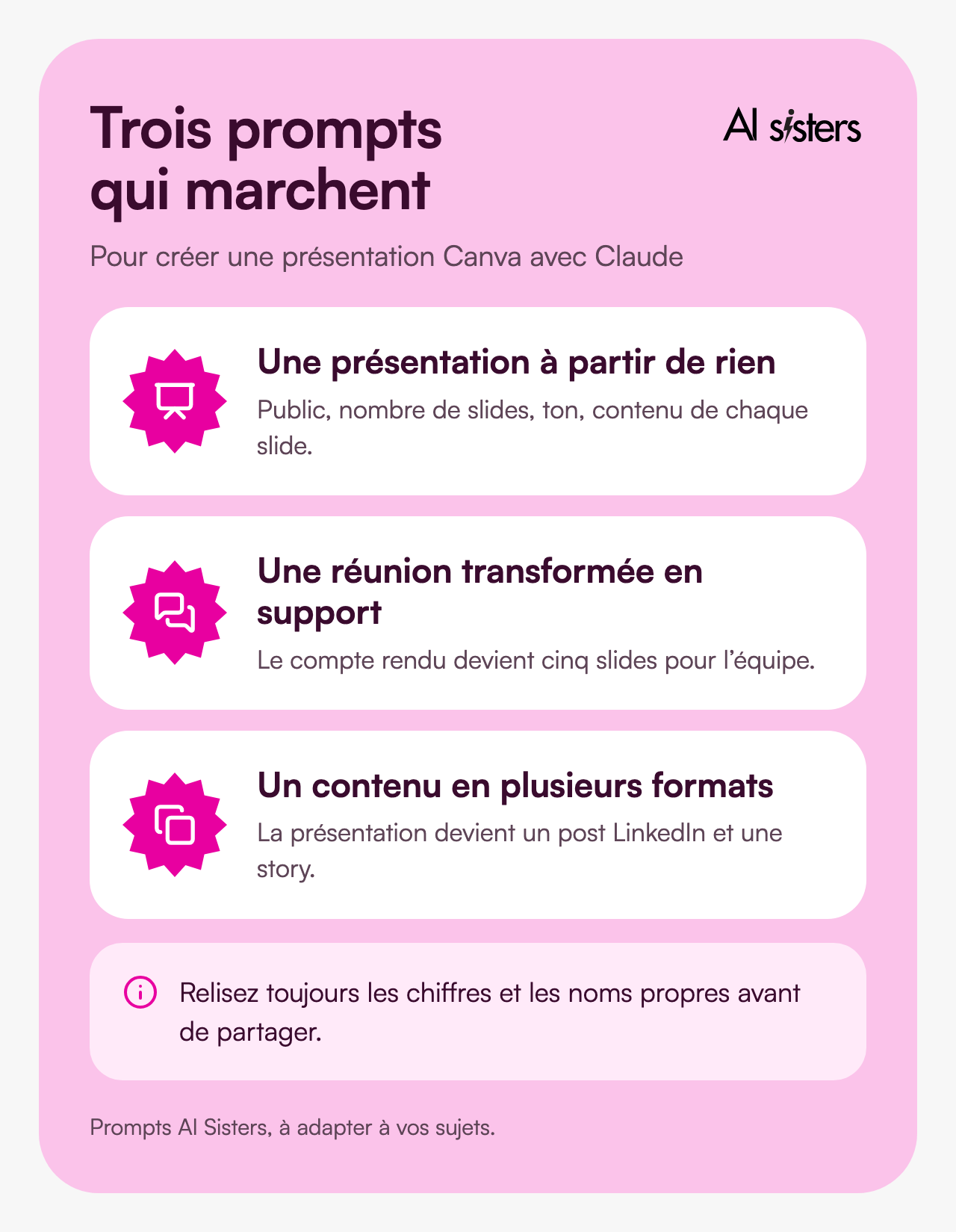
A presentation from scratch.
"Using Canva, create a 6-slide presentation on AI in corporate finance, for a leadership team. Clean style, one idea per slide, a short title and three bullet points maximum. End with a recommendations slide."
A meeting turned into a deck.
"Here are the minutes of our kick-off meeting. Turn them into a 5-slide Canva presentation for the team: context, objectives, timeline, roles, next steps."
Content adapted into several formats.
"Take the 'Product launch' presentation in my Canva. Create a square LinkedIn post and an Instagram story with the same message and the same colours."
Check the figures and proper names before sharing. For a brief you reuse often, a Claude Skill saves you rewriting it.
Prepare a presentation with Claude and Canva
A class presentation, an internship defence, a presentation to your manager: the method comes down to five steps.
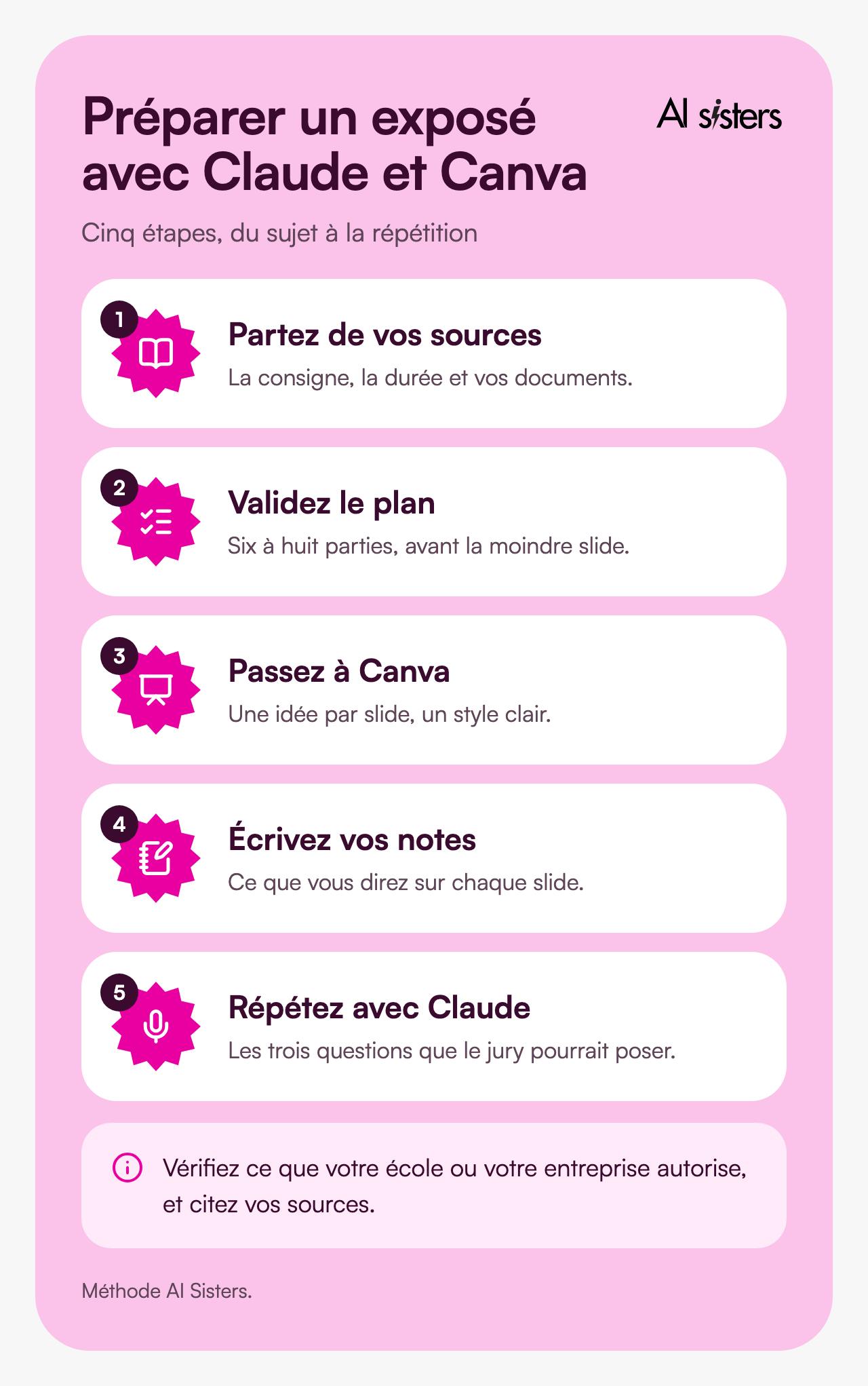
1. Start from your topic and your sources.
Give Claude the brief, the length and your documents. The more it works from your sources, the less it makes up.
2. Approve the outline before the slides.
Ask for an outline in 6 to 8 parts and correct it: this is the moment to change direction.
3. Move to Canva.
"Create an 8-slide presentation in Canva from this outline, clear style, one idea per slide, for a 10-minute talk."
4. Write your speaker notes.
Ask Claude, in short sentences, what you will say on each slide.
5. Rehearse with Claude.
Ask it for the three questions a panel or a teacher might ask, and prepare your answers.
Check what your school or company allows, and cite your sources.
Using Canva with Claude Code
Claude Code, Anthropic's development agent, can also drive Canva, for example to produce visuals in bulk from data.
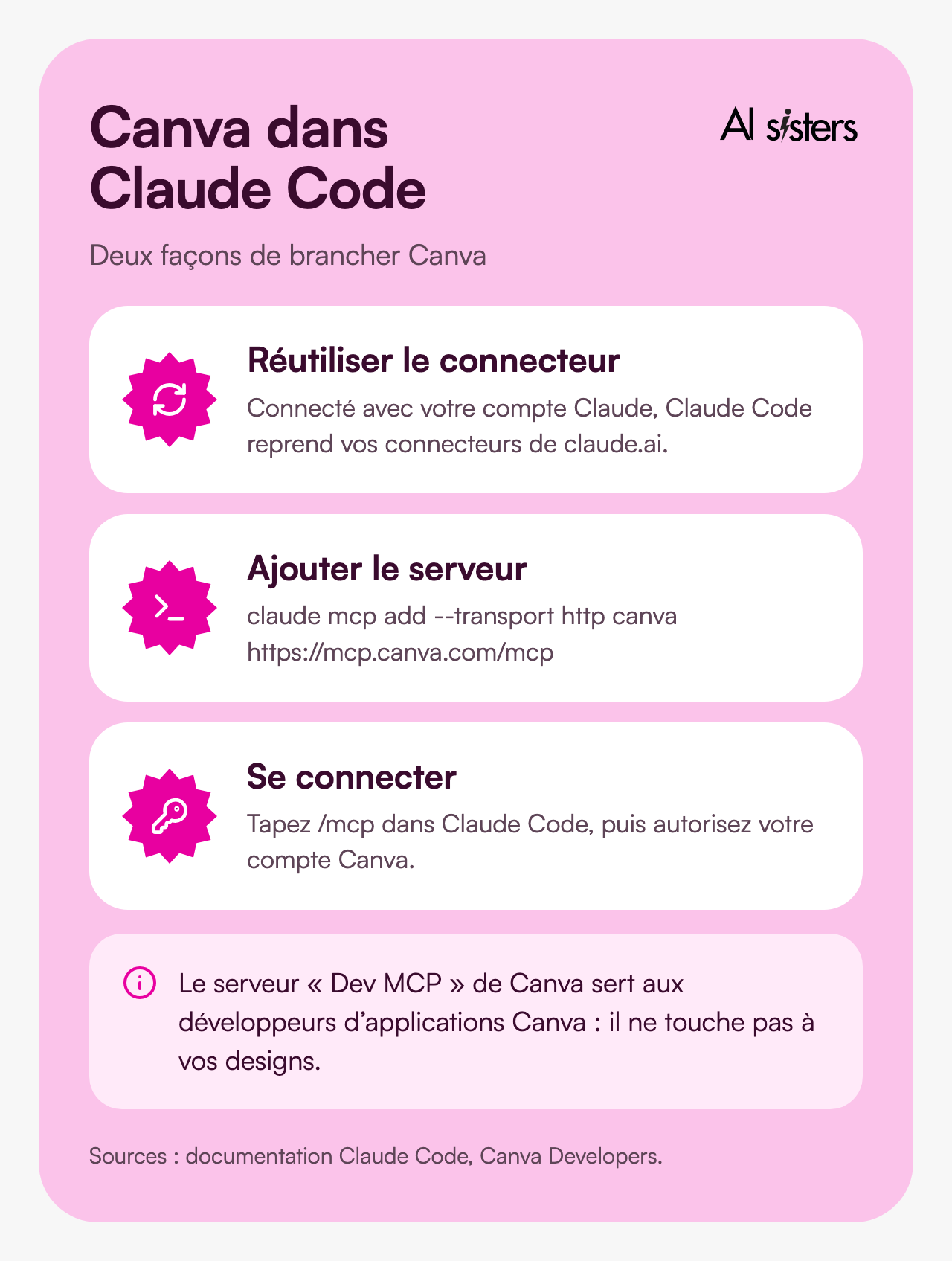
The simplest option: reuse your connector.
When signed in with your Claude account, Claude Code automatically picks up your claude.ai connectors, according to its documentation.
Otherwise, in one command.
Canva publishes its server address: https://mcp.canva.com/mcp. In a terminal, type claude mcp add --transport http canva https://mcp.canva.com/mcp, then /mcp in Claude Code to sign in to your Canva account.
Not to be confused.
Canva's "Dev" MCP server is for developers of Canva apps, not for your designs.
💡 To put it simply: MCP is a standard plug. Canva provides the socket, and Claude, Claude Code, ChatGPT or Copilot plug into it in the same way. To choose between them, see our comparison of Claude, ChatGPT and Gemini.
Claude Slides or Canva: which to choose
Since 16 September 2026, Claude makes its own slides with Claude Slides, in beta. You present them from Claude or export them to PowerPoint or PDF (details in our article on Claude Slides).
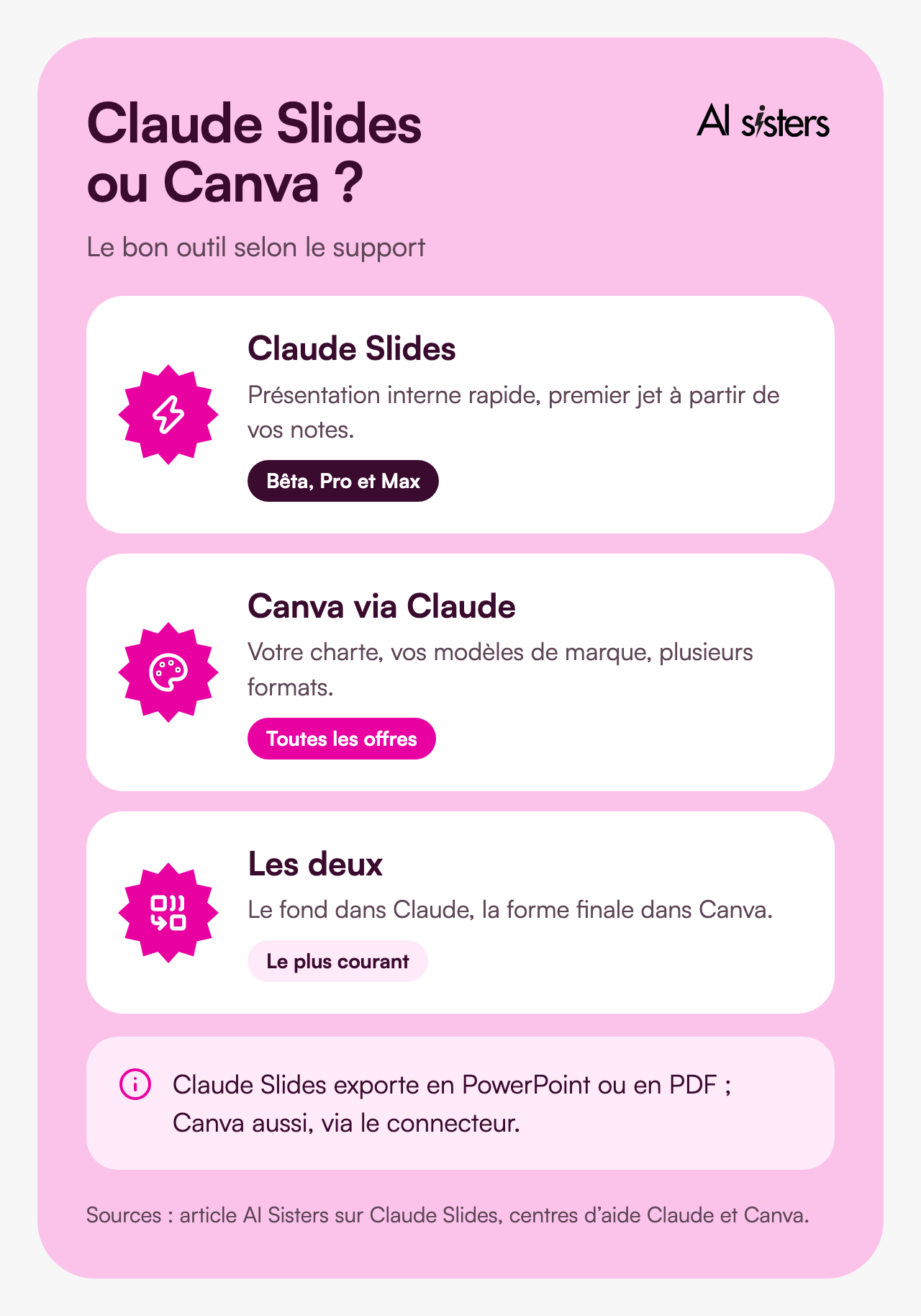
Choose Claude Slides
for a quick internal presentation or a first draft from your notes, without a Canva account. It is reserved for paid plans: Pro and Max first, then Team.
Choose Canva
to follow your brand guidelines, reuse your brand templates or adapt into several formats, especially if your teams already work in it.
Combine the two:
the content in Claude, the final design in Canva. For a tool dedicated to presentations, see also Gamma.
💡 In short: Claude Slides for speed, Canva for brand and formats. Both work from the same conversation.
Training a marketing team on these tools is one of the most requested AI training courses. Our free guides are on our resources page.
Book your 30-minute call now
A no-obligation conversation to build your AI training around your tools.
👉 Tell us about your AI project 👈
Key takeaways
- Connect Canva once, in Customize, Connectors, then switch it on in each conversation.
- No paid plan is required, but brand templates need a paid Canva plan.
- Give Claude a precise brief: audience, number of slides, tone, content of each slide.
- For a presentation, approve the outline before the slides and prepare your speaker notes.
- Claude Code plugs into Canva with the same connector or a command.
- Claude Slides for speed, Canva for brand guidelines.
To go further, our corporate Claude training helps your teams make the most of Claude every day, connectors included.
Where does your company stand with AI? Take the free AI diagnostic in 5 minutes and get your action priorities.
Sources
- Anthropic, Claude Help Centre, Use connectors to extend Claude’s capabilities, accessed 2 October 2026.
- Anthropic, Claude Help Centre, Use interactive connectors in Claude, 11 August 2026.
- Canva, Help Centre, "Connect your Canva account to Claude" (canva.com/help/connect-claude-to-canva/), accessed 2 October 2026.
- Canva, Help Centre, "Connect Canva to an AI assistant" (canva.com/help/mcp-agent-setup/), accessed 2 October 2026.
- Canva, Help Centre, "Actions you can take in AI assistants connected to Canva MCP" (canva.com/help/mcp-canva-usage/), accessed 2 October 2026.
- Canva Developers, Verify your Canva MCP app, accessed 2 October 2026.
- Anthropic, Claude Code documentation, Connect Claude Code to tools via MCP, accessed 2 October 2026.
- 9to5Mac, You can now use apps like Slack, Figma, and Canva from Claude, 26 January 2026.
- AI Sisters, Anthropic launches Claude Slides, 1 October 2026.







.avif)
