.svg)
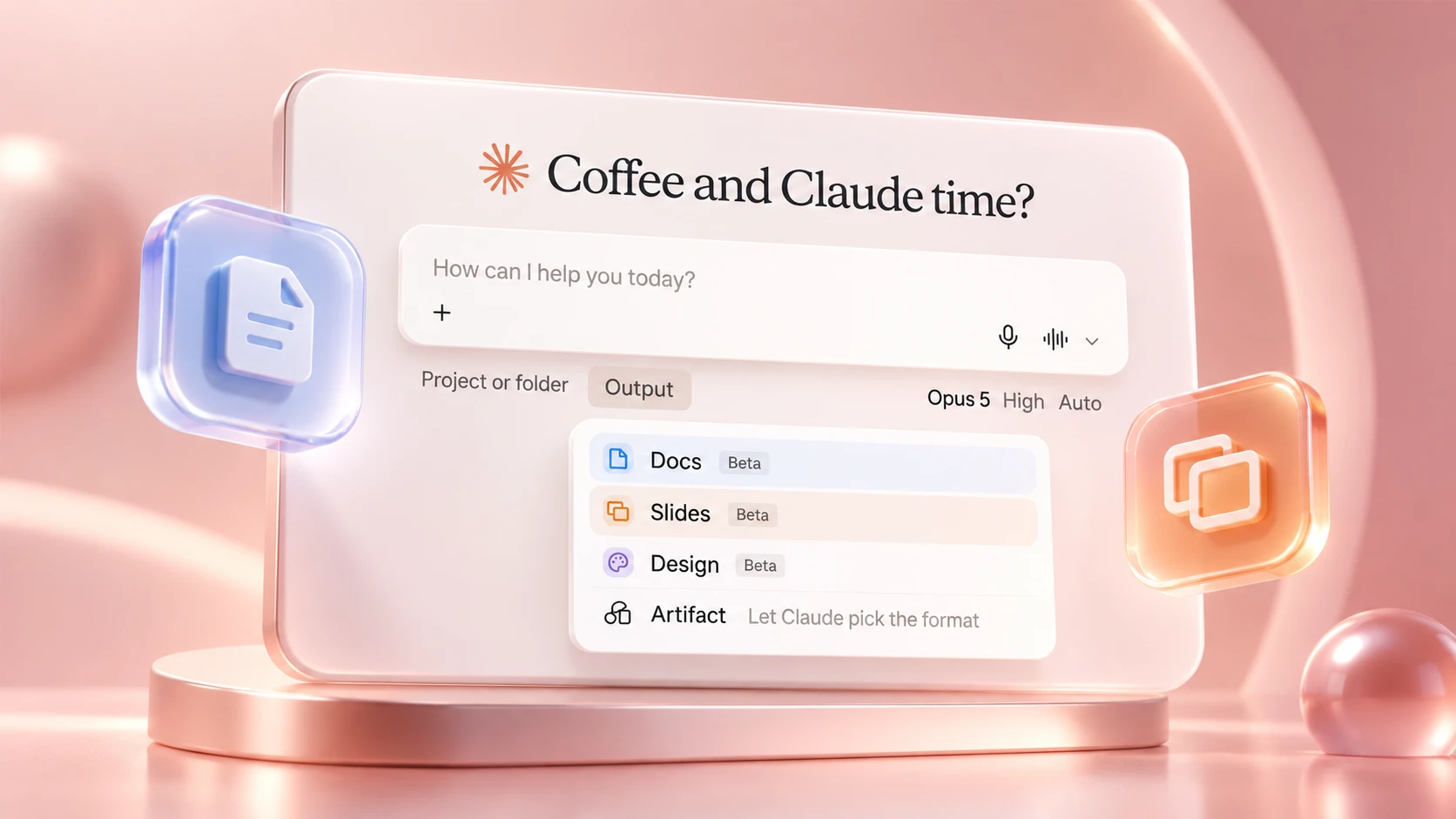
Five slides for Monday's committee, and 20 minutes lost trying to line up three boxes in PowerPoint. Your teams know the drill. 😅
Since 16 September, Claude can make those slides itself. With Claude Slides, you ask for a presentation, Claude prepares it, and you present it without opening PowerPoint.
Still need a file? You export it to PowerPoint or PDF.
We read Anthropic's announcements and help pages to explain how to make your slides in Claude, and where the limits are.
By the way: at AI Sisters, we are members of the Claude Partner Network. We also train teams on ChatGPT and Copilot. Let's go 👇
"Presentations created from your notes, reports or the work already in your conversation. Edit any slide directly, present without leaving Claude, and export to PowerPoint or PDF": that is how Anthropic describes Claude Slides in its help centre.
In brief
- Claude Slides came out on 16 September, in beta: Claude prepares your presentations directly in the conversation.
- You edit each slide yourself, or ask Claude in a comment.
- You present from Claude, and export to PowerPoint or PDF only if needed.
- Pro and Max subscribers get it first. The Team plan follows, the administrator decides on Enterprise, and the free plan does not get it.
- Claude Docs arrives at the same time, for writing documents together, with Claude.
- ChatGPT, for its part, moved into PowerPoint this summer. Two approaches: AI inside PowerPoint, or your slides without PowerPoint.
Also worth reading
Explore our other articles to go further with AI for your presentations:
Making slides in Claude, from request to presentation
Nothing to install: it all happens in the conversation.
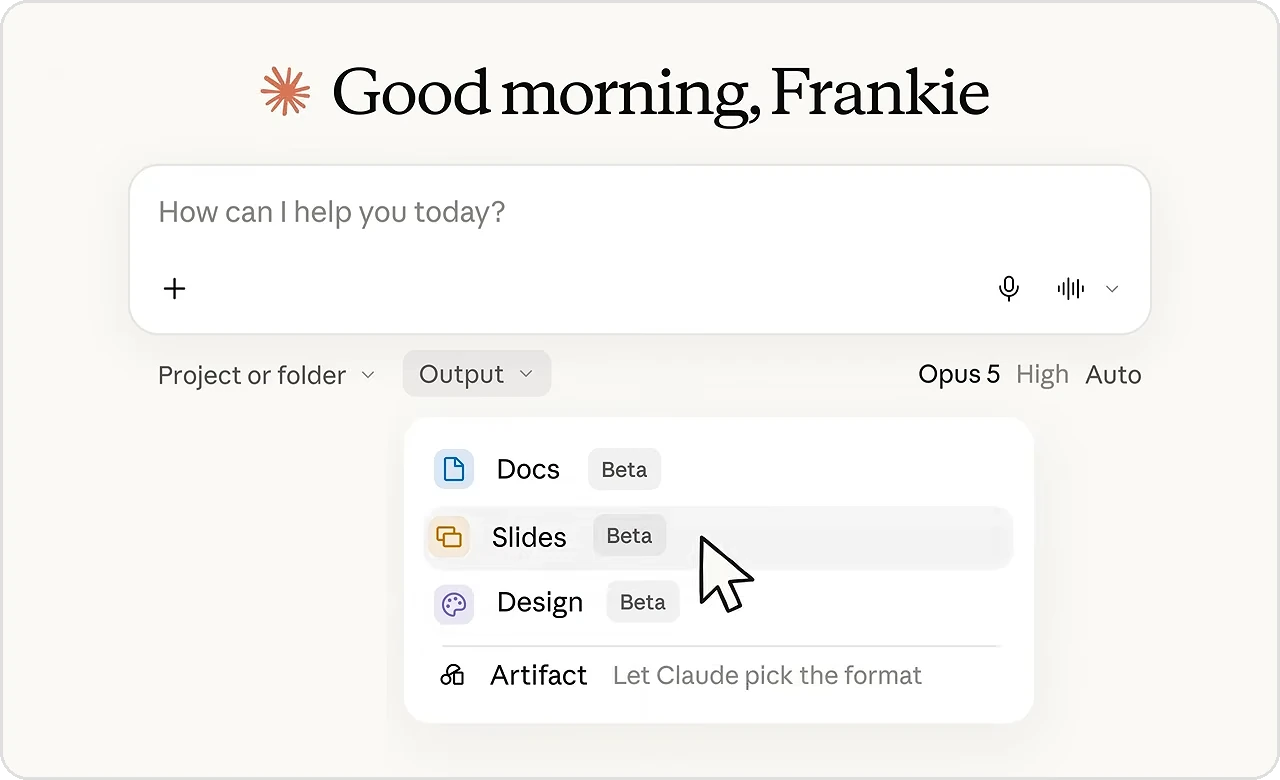
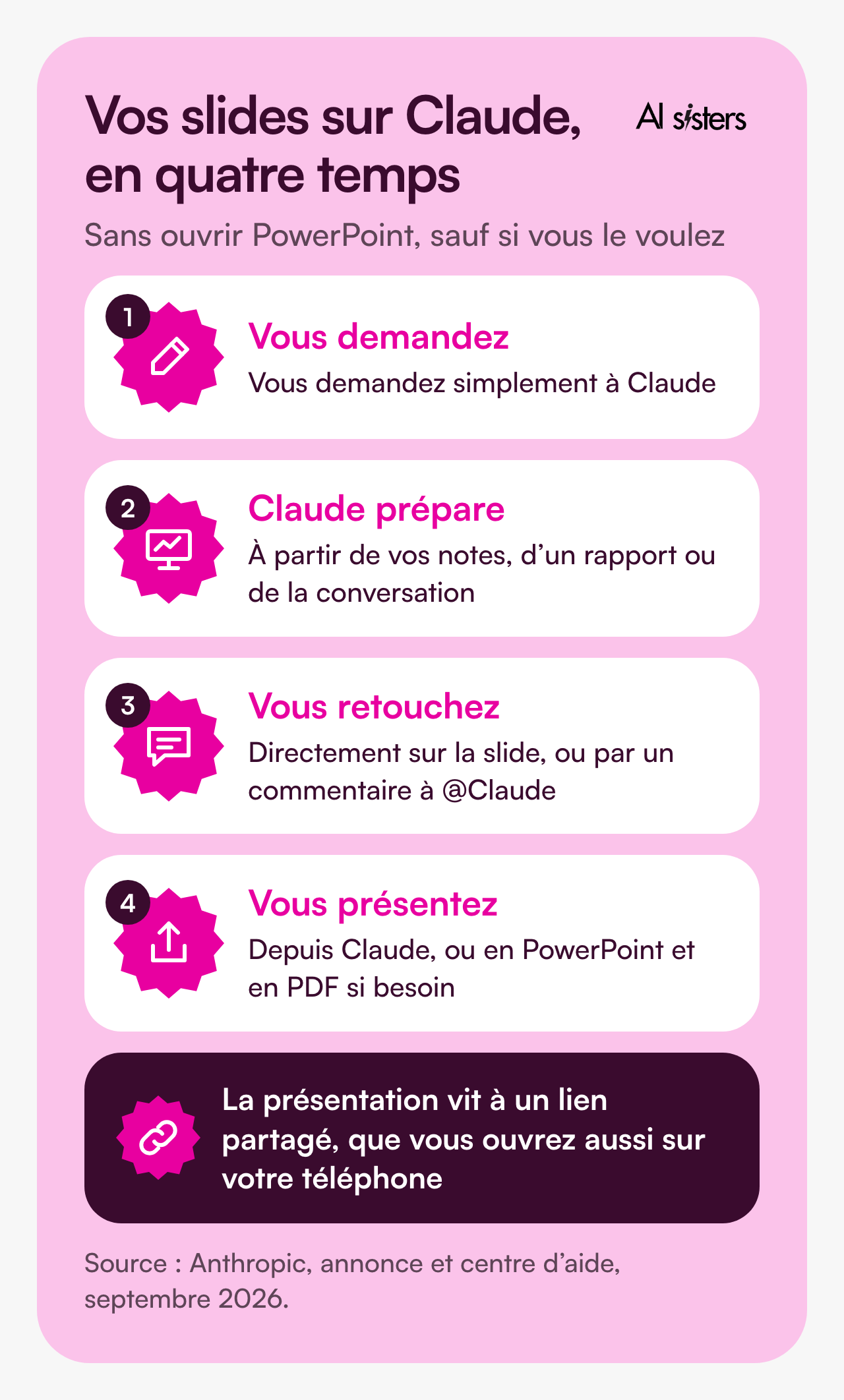
🔥 You ask for a presentation.
🔥 Claude prepares the slides from your notes, a report or what you have just discussed.
🔥 You make edits. Directly on the slide, or by leaving Claude a comment.
🔥 You present from Claude, without opening PowerPoint. And if a client wants the file, you export it to PowerPoint or PDF.
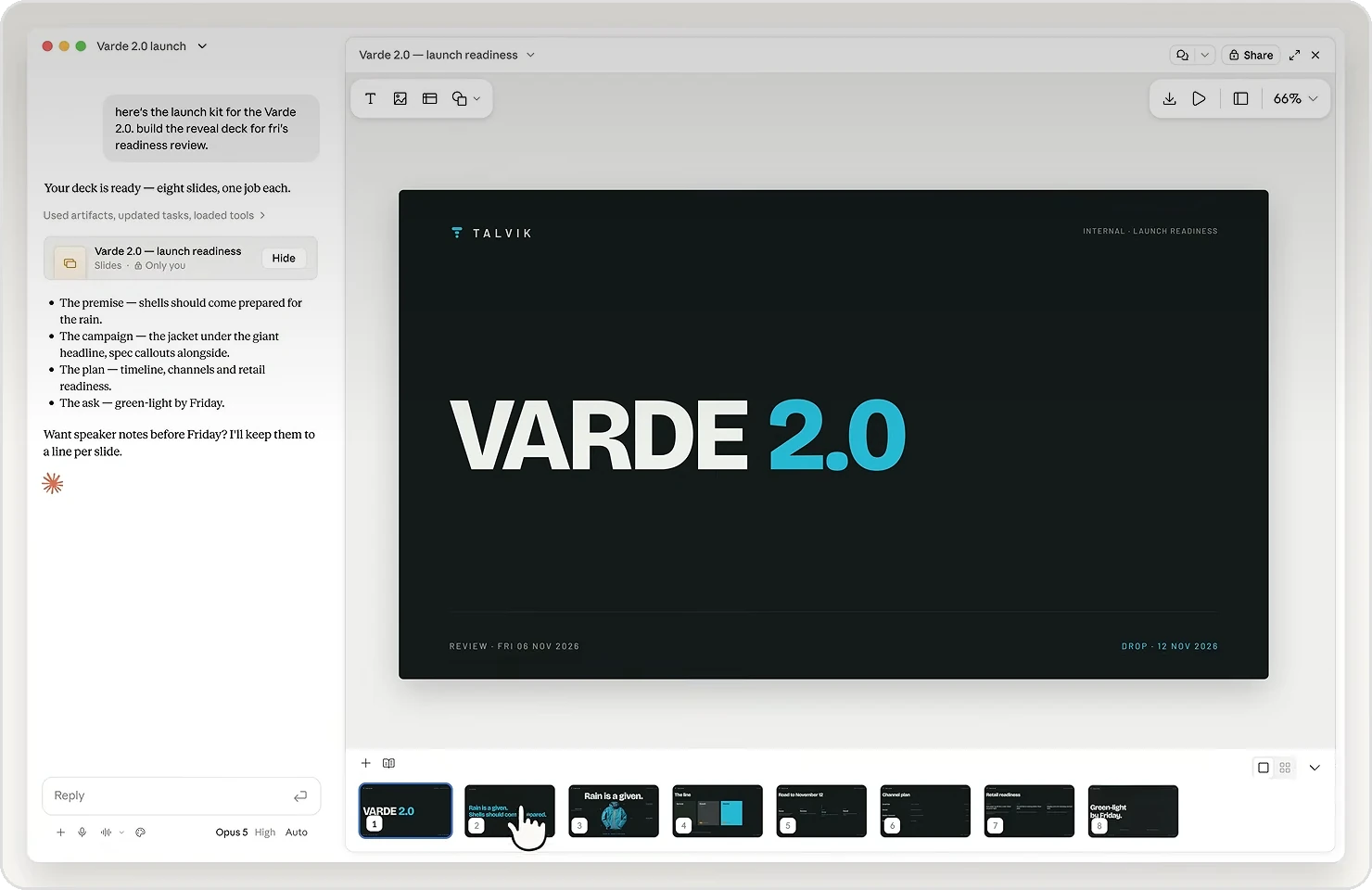
In the meantime, the presentation lives at a shared link, which you can also open on your phone.
💡 In short: Claude does the first draft of your slides, you finish them in the same conversation, and PowerPoint becomes optional.
Along the way, Cowork disappears as a separate space: it is merged into the conversation. We covered its latest features in our article on Claude Cowork.
Editing your slides in Claude with a comment
To rework a passage, you leave Claude a comment, as you would a colleague.
Anthropic explains how it works for Claude Docs, its new documents tool:
- You select the passage to change.
- You leave a comment mentioning @Claude, with your request. For example: "@Claude, summarise this paragraph in two sentences".
- Claude replies in the comment thread. It makes the change, then explains what it changed, and why.
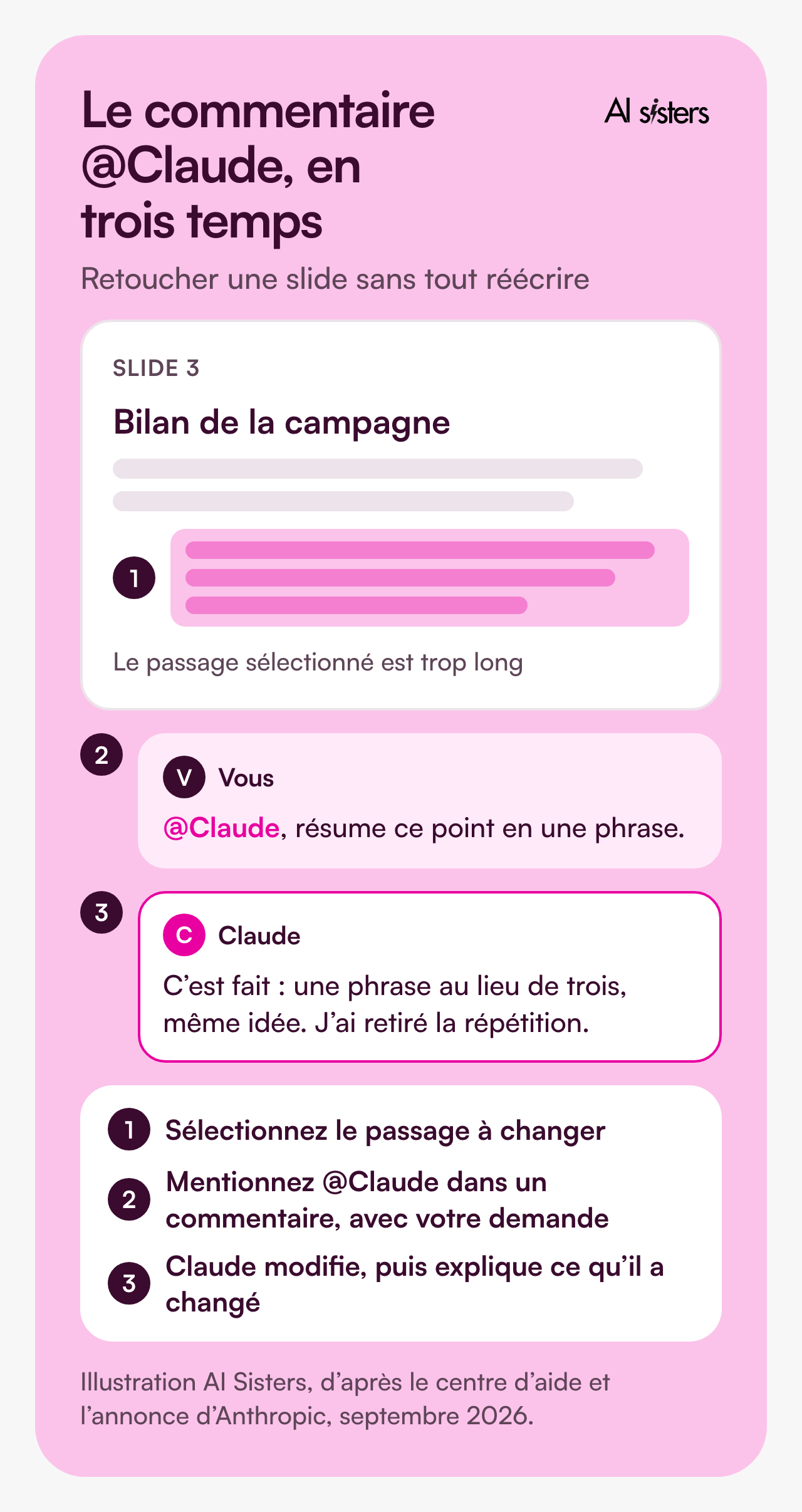
Claude Slides works the same way: in its announcement, Anthropic shows a comment left for Claude directly on a slide.
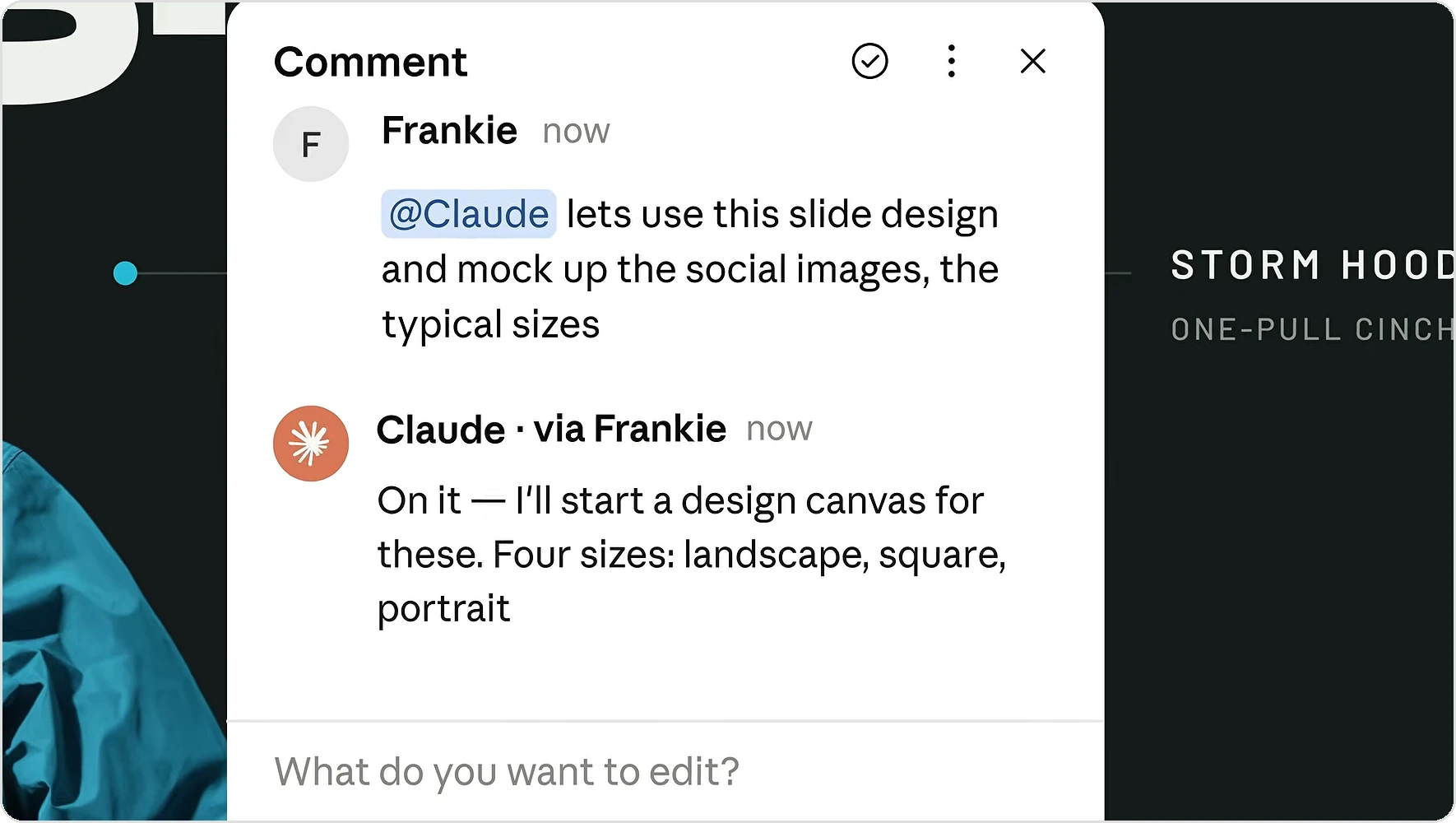
Good to know:
- Claude also comments on its own while it writes, to explain a choice or ask you a question.
- Every change carries its author's name, whether a person or Claude.
- Claude never has more rights than you. It acts with the permissions of the person asking: a colleague with read-only access cannot get it to edit the document.
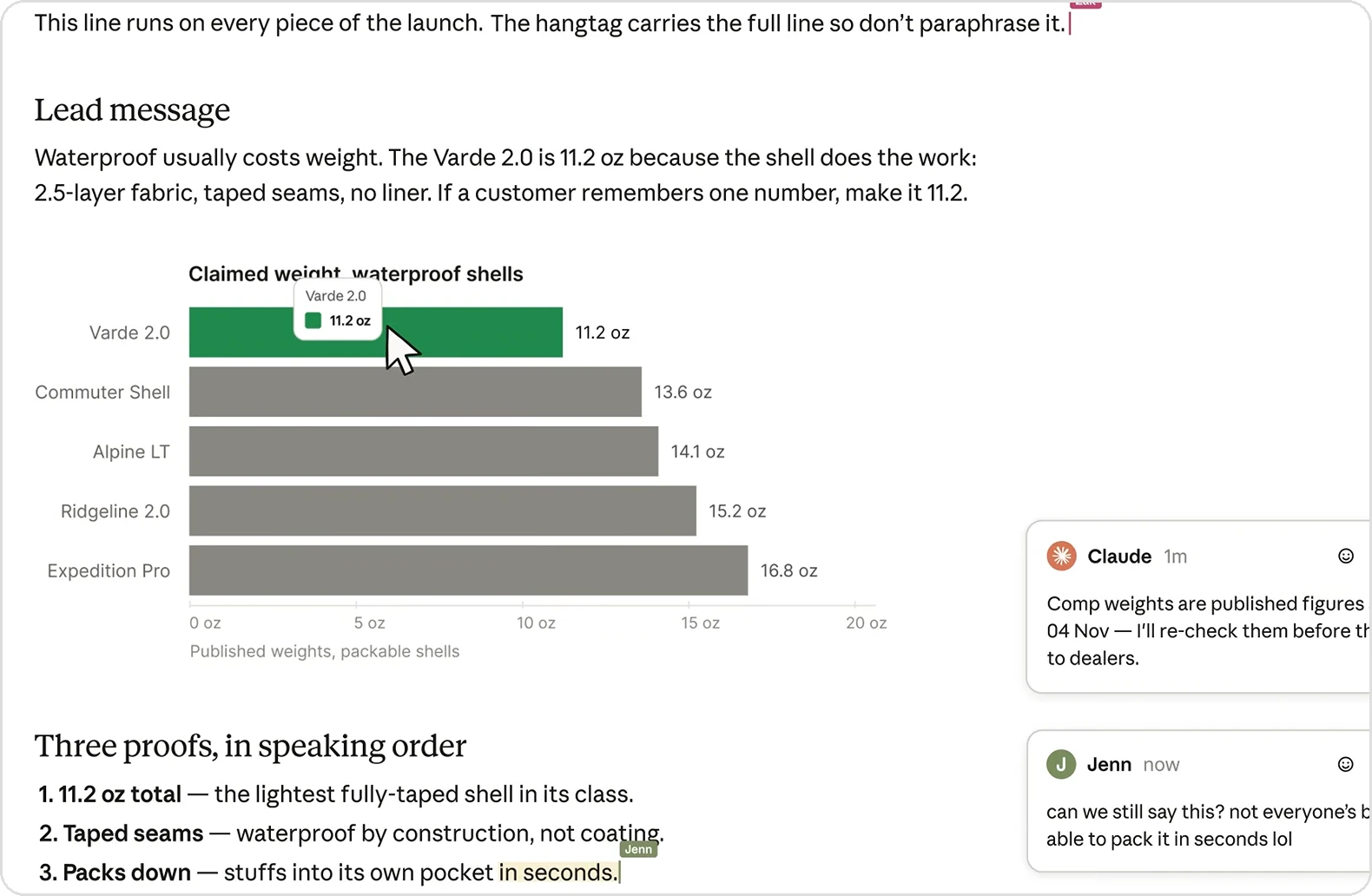
💡 In short: mentioning @Claude is like tagging a colleague in a comment. Except this colleague makes the edit straight away, and tells you what they changed.
Claude Slides: Anthropic's answer to ChatGPT Work
On slides, OpenAI moved first.
On 6 July, ChatGPT arrived in PowerPoint. Three days later, OpenAI launched ChatGPT Work, an agent that delivers finished documents, spreadsheets and presentations.
And on 17 September, the day after Claude Slides, ChatGPT came to Word.
Claude was already in PowerPoint too: its add-ins for PowerPoint, Word and Excel have been available since May.

With Claude Slides, Anthropic offers the opposite: making your slides without going through PowerPoint.
Maria Bell, an analyst at CCS Insight, sums up the difference in Computerworld: "Microsoft and Google are embedding AI ever more deeply into existing office tools, whereas Anthropic is increasingly building office work into AI."
💡 In short: you can keep AI inside PowerPoint, or make your slides directly in Claude, then export.
Discover our AI training & book a call
Explore our training modules and choose, with us, the one that best meets your AI needs.
📚 See our AI training 📞 Book a discovery call
Making slides in Claude: the limits of the beta
Before rolling it out to your teams, read the small print. Anthropic sets it out itself in its help centre.
⚠️ You need a Claude account to open a shared presentation, even with the link. For a client without an account, export it.
⚠️ On mobile, you can view but not edit. Edits are made on the web or in the desktop app.
⚠️ It uses up your quota. Presentations count towards your plan's usage limits.
⚠️ No free plan. And on Enterprise, the tool stays off until the administrator turns it on.
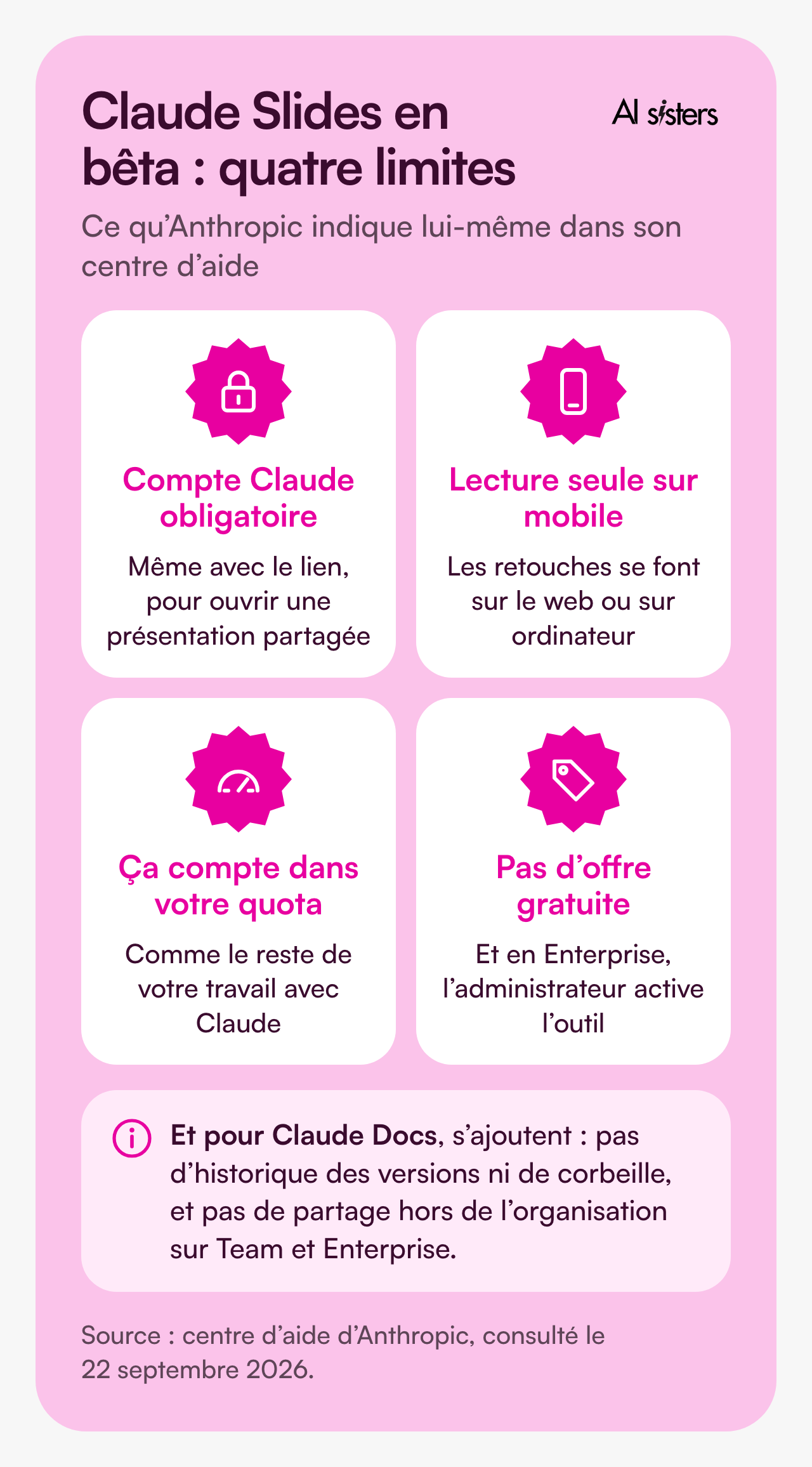
For Claude Docs, the list is longer: no version history or bin, and no sharing outside the organisation on the Team and Enterprise plans.
One last point: as of 22 September, we found no press tests of the exports. So it is impossible to say whether the text stays editable once in PowerPoint.
💡 In short: it is a beta. Test it on your internal presentations, not on Monday's client pitch.
Slides in Claude: which uses for your teams?
In practice, what can you do with it? Here are the uses it suits best, team by team.

For a leadership team: turn the committee notes into five slides for the next one.
This is Anthropic's own example: the report and the slides come out of the same conversation, so they tell the same story.
For a sales team: draw the client presentation from your proposal, then present it from Claude.
In our key account case study, an AI agent cut proposal production from several days to under an hour.
For a marketing team: write the campaign brief in Claude Docs, turn it into a launch presentation, then create the matching visuals with Claude Design.
Everything comes out of the same conversation, without switching tools. We show you how to use Claude Design in our Claude Design guide.
For an HR team: write the onboarding guide in Claude Docs, then draw the welcome slides for new starters from it.
Anthropic cites the onboarding guide as an example in its help centre, and we cover other uses in our article on AI for HR departments.
For a finance team: prepare the committee slides from the monthly report written in Claude Docs.
Note: in Claude Docs, a chart pulled from your connected tools does not update by itself. Ask for the latest figures again before each committee.
And this is exactly what we see in training: teams adopt AI when they see it working on their own documents 💡 That is the whole idea behind our role-based approach to training.
Book your 30-minute call now
A no-obligation conversation to build your AI training around your tools.
👉 Tell us about your AI project 👈
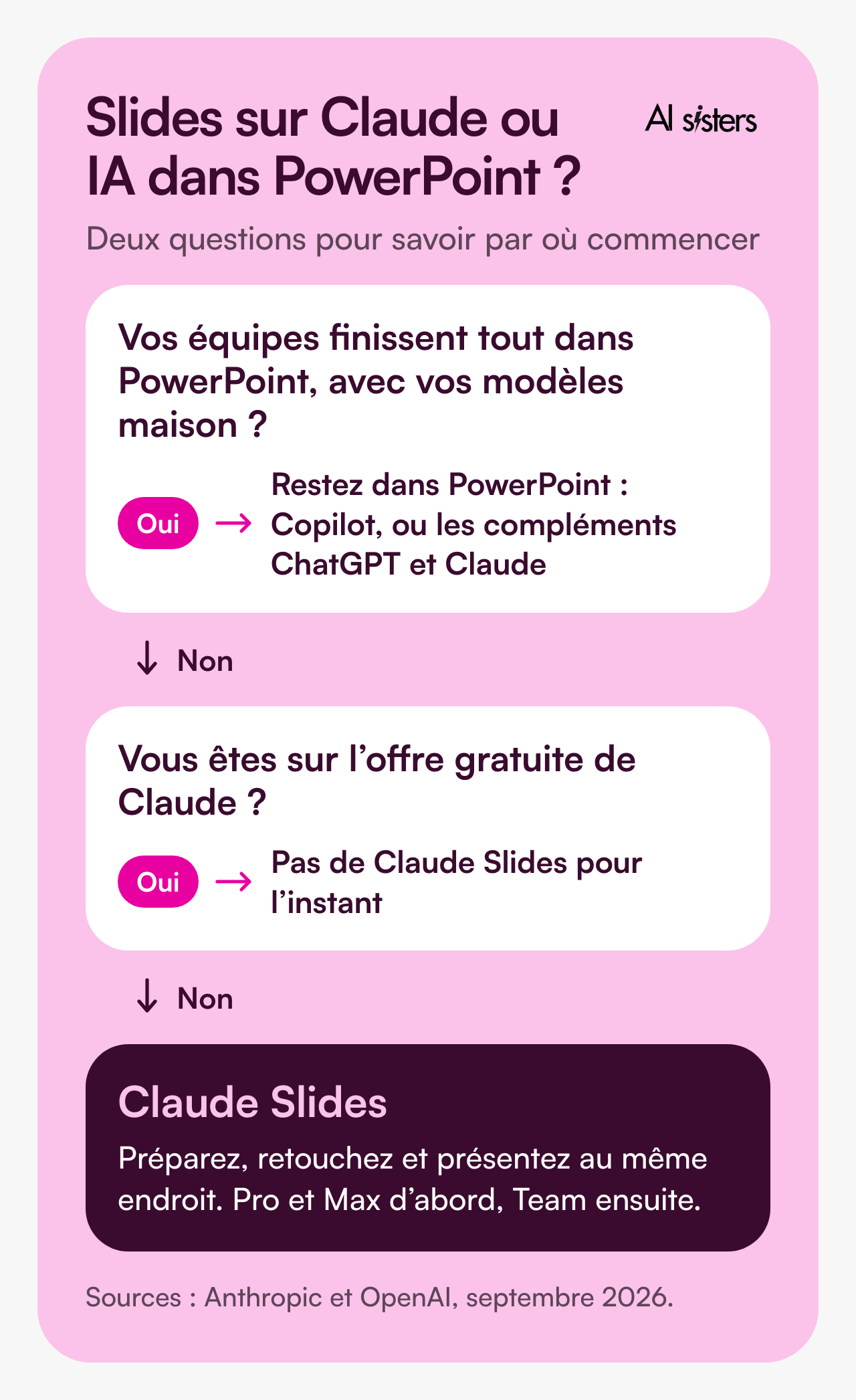
Slides in Claude or AI in PowerPoint: which to choose?
The right choice depends mainly on where your teams work.
✅ Do your teams finish everything in PowerPoint, with your in-house templates? Stay in PowerPoint: Copilot, or the ChatGPT and Claude add-ins.
✅ Do you want to prepare, edit and present in one place? Claude Slides, on Pro and Max today, Team next.
✅ Are you on Claude's free plan? No Claude Slides for now.
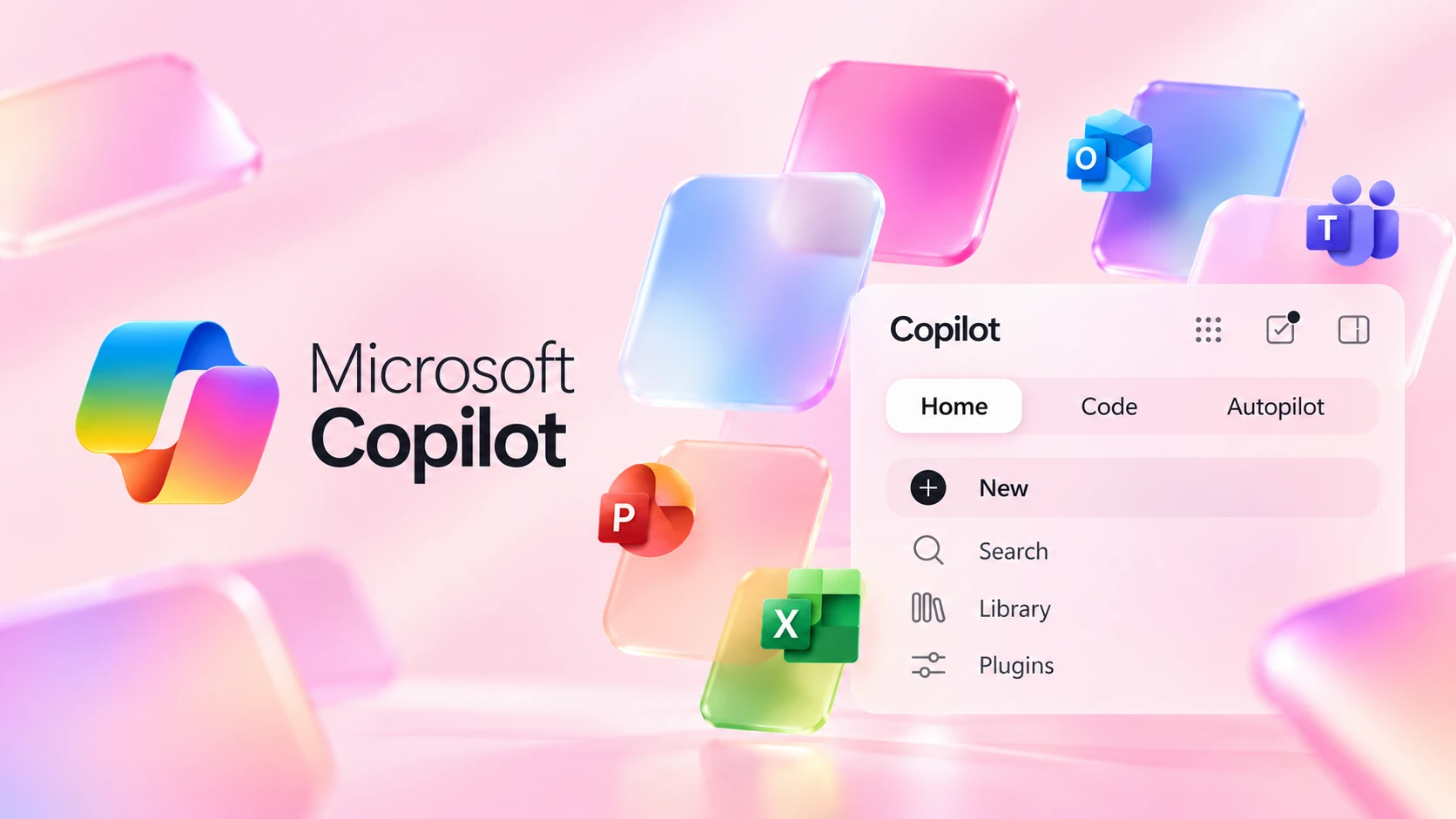
A small irony: Copilot also offers Claude's models, in Excel and PowerPoint.
And if you are still torn between assistants, we compared Claude, ChatGPT and Gemini for businesses.
AI Sisters is a member of the Claude Partner Network
We train your teams on Claude, from Claude Slides to the PowerPoint and Word add-ins, and help you deploy it in your tools.
📚 Discover our Claude training 📞 Discuss your Claude project
Key takeaways
- Claude Slides prepares your presentations in the conversation, and you present them without opening PowerPoint.
- To edit, a comment mentioning @Claude is enough: Claude makes the change and explains what it changed.
- PowerPoint remains a way out: exporting to PowerPoint or PDF is there when you need a file.
- The beta comes to Pro and Max first. Team follows, Enterprise turns it on as required, no free plan.
- You need a Claude account to open a shared presentation, and on mobile, you can only view.
- Test it on a recurring presentation, and always check the export before sending it.
Sources
- Anthropic, Claude Cowork and chat are now one Claude, 16 September 2026.
- Anthropic, help centre, What are artifacts and how do I use them?, accessed 22 September 2026.
- Anthropic, help centre, Publishing and sharing artifacts, accessed 22 September 2026.
- Anthropic, help centre, Get started with Claude Docs, accessed 22 September 2026.
- Anthropic, Claude in Excel, PowerPoint, Word and Outlook, 7 May 2026.
- OpenAI, ChatGPT release notes: ChatGPT for PowerPoint (6 July 2026), ChatGPT Work (9 July 2026), ChatGPT for Word (17 September 2026).
- Computerworld, Anthropic tries to make Claude stickier with launch of Docs and Slides, 17 September 2026.





.avif)
